Instructions
Download
You can download the OpenVPN Connect app here
The app works for both Windows 10 and Windows 11.

Profiles
Additionally download the uni or admin (optional, only if you have admin VPN access).
Confirm the download with "Download".
Installation
Now run the downloaded setup file to start the installation.
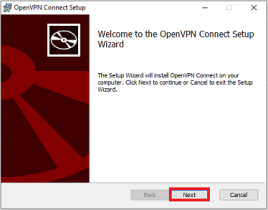
Confirm with "Next" in the window that now opens.
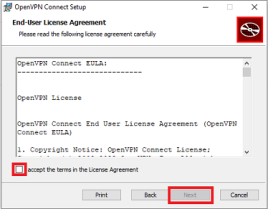
Agree to the license terms by ticking "I accept the License Agreement" and confirm with "Next".
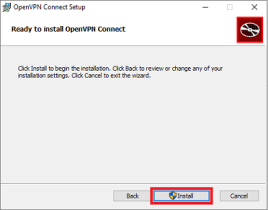
The program will now install the app automatically. Then confirm with "Install" to end the process.
The OpenVPN Connect APP will now open on your screen and you can start the setup.
Setup
Confirm the request with "Agree" to start the setup.
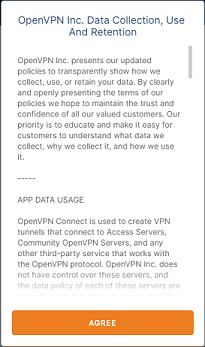
In the next step, you must now import the downloaded profile. This is done either via URL or the File option.
If you choose the File option, for example, you can select and import the profile in your download folder via the "Browse" option.
As soon as the profile is integrated, you can enter your user name. The app will prompt you to do so.
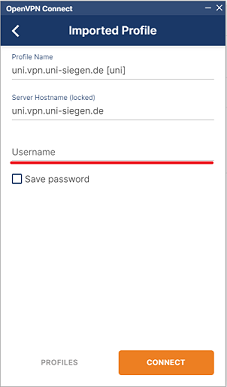
Confirm with "Connect" and enter your password in the next step. Confirm with "OK".
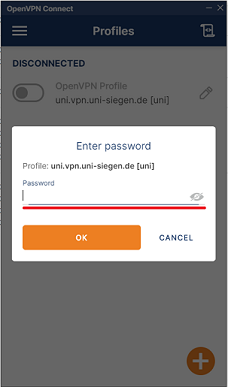
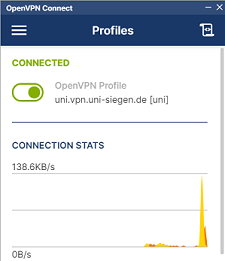
After entering the correct information, the app can now establish a connection.