Eduroam
On this page you will learn how to set up eduroam on your devices and how to solve common problems.

Instructions
Download the app
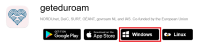
Download the geteduroam app for Windows at geteduroam.app
download.
Select the app for Windows. After downloading, you will find the app in your download directory.
Setup
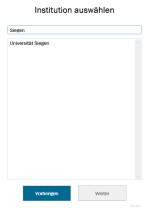
Run the file to start the setup and select the University of Siegen in the app. If this is not displayed automatically, you can find it using the search function.
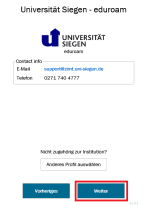
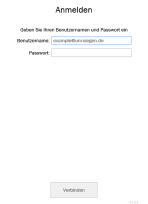
In the next step, enter your user name + @uni-siegen.de (e.g. g123456@uni-siegen.de) and your password. Confirm with "Connect".
The configuration is complete. You can close the window and check your Wi-Fi settings to see whether your device is connected to eduroam.
Download
To connect your MacOS device to eduroam, please download the eduroamCAT tool first:
Once on the page, click on the blue button:

Next, a menu will open in which you must select the University of Siegen.
If the University of Siegen was not found automatically, you can use the search field below to find the university.
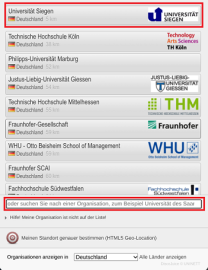
You will now be taken to the page where you can start the download. The correct program will be suggested automatically.
Click on the blue button.

You will then be taken to a page where the download will start automatically. This may take a few seconds.
If this is not the case, you can also start the download manually. A text will appear on the website. Follow the instructions there.
In some cases (often during initial setup), you may have to approve the download first. This will open a dialog box which you must confirm with "Allow" in order to continue with the download.
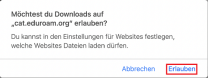
Setup
Now open your system settings and select the "Profiles" option.
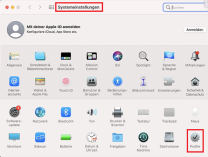
Select the eduroam profile from the menu on the left. To establish a connection, click on "Install".
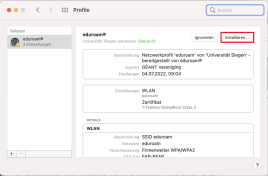
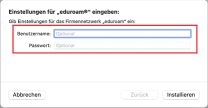
In the window that opens, enter your user name +@uni-siegen.de
(e.g. g123456@uni-siegen. de) and your password in the window that opens. Confirm with "Install".
Your device will now ask for your device password (the password you use to unlock your device).
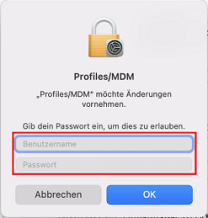
Once you have entered your device password, the process is complete. You now have a secure connection to the eduroam network.
Compatibility
Download and setup
Search for the "geteduroam" app in the Apple App Store
or download it here.
When installing for the first time, you may need to allow the download before you can continue.
Then open the geteduroam app to start the setup.

The app will now guide you through the setup process.
First you need to find and select the University of Siegen using the search field.
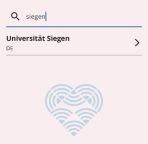
In the next step, the app will ask you to enter your username and password.
Please note that the username + @uni-siegen.de (e.g. g123456@uni-siegen. de) is requiredhere.
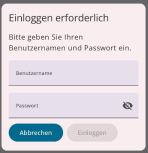
After you have entered your data and confirmed with "Connect to network", your device still needs permission to connect to the network. Confirm with "Allow" and the next pop-up with "Connect".
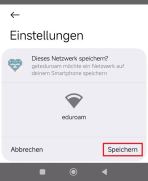
Your connection is now configured and can be used.
Compatibility
Download
Open the following page in a browser of your choice (e.g. Firefox): https://cat.eduroam.org.
Once on the page, click on the blue button:
In the following menu, select University of Siegen. If the University of Siegen was not found automatically, you can use the search field below to find the university.
You will now be taken to the page where you can start the download. The correct program will be suggested automatically.
Click on the blue button:
You will then be taken to a page where the download will start automatically. This may take a few seconds.
If this is not the case, you can also start the download manually. A text will appear on the website. Follow the instructions there.
The downloaded file is now in your download directory. You will find it under the name:
eduroam-linux-Universitat_Siegen-eduroam.py.
Grant authorization
Now open your terminal and enter the following command to access your download directory:
cdDownloads/

To display the files in the directory, enter the following command:
ls-l

Now search for the downloaded file. You should find it under the name eduroam-linux-Universitat_Siegen-eduroam.py. It should contain the following rights:
-rw-rw-r-

You therefore still lack the rights to execute the file. To change this, enter the following command in your terminal:
chmod +x eduroam-linux-Universitat_Siegen-eduroam.py
Use this command to add the missing X authorization. To check this, enter the command ls -l again. The file should now have the following abbreviation at the beginning:
rwx-rwxr-x.

Execution and installation
Important: Do not execute the file as a sudo!
Now enter the following command:
python3 eduroam-linux-Universitat_Siegen-eduroam.py
A pop-up will then open. Confirm this with Ok.
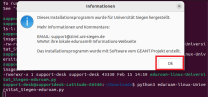
Confirm the next window with Yes.

In the next window you can now enter your user name +@uni-siegen.de (e.g. g123456@uni-siegen.de) and confirm with Ok.
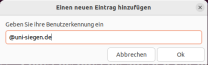
Now enter your password and confirm with Ok.
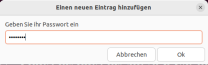
Once you have successfully entered the correct data, the following window will appear:
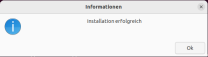
Eduroam will now connect automatically.
Download
Open the following page in a browser of your choice (e.g. Chrome): https://cat.eduroam.org.
Once on the page, click on the blue button:
Next, a menu will open in which you must select the University of Siegen. If the University of Siegen was not found automatically, you can use the search field below to find the university.
You will now be taken to the page where you can start the download. The correct program will be suggested automatically.
Click on the blue button.

Click on the blue button. A small dialog box will appear where you must confirm with "OK" to start the download.
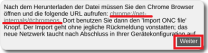
You will then be taken to a page where the download will start automatically. This may take a few seconds. If this is not the case, the download can also be started manually. To do this, a text will appear on the download page and you must follow the instructions.
Import and setup
Now enter the following path in your browser: chrome://network#general
You will now be taken to a page where you can import the downloaded file.
Under "Choose File" you can select and import the downloaded file.
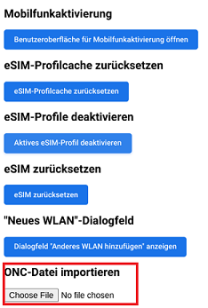
The profile is now imported and you can start setting it up.
You can now select the eduroam profile in the WLAN menu and enter your data manually. To do this, click on the profile and then on "Connect". You will then be asked to enter your user ID and password.
Please note that @uni-siegen.de must be entered after the user ID (e.g. g123456@uni-siegen.de).
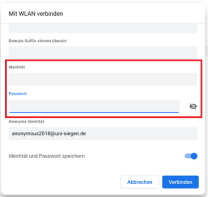
After entering the correct information, confirm with "Connect". Your eduroam access is now set up.
F.A.Q.
If you have previously established a connection to eduroam and it no longer works, you must remove the eduroam profile or the connection to eduroam from your device once.
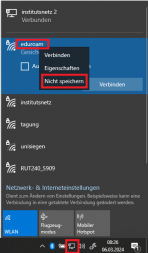
On Windows devices, you can remove the connection by opening your Wi-Fi connections from your taskbar and selecting "eduroam". By right-clicking on the connection to eduroam, you can now select the "Do not save" option from the drop-down menu.
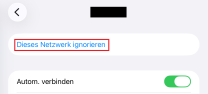
For MacOS and iOS devices, remove the connection by opening it in your Wi-Fi settings (by clicking on the info button) and then selecting "Ignore this network".
For Android devices, remove the eduroam connection by selecting the connection in the Wi-Fi settings and then clicking on "Remove network".
For ChromeOS devices, remove the connection via the Wi-Fi settings by selecting and removing the connection under "Known networks".
In some cases, problems may occur during setup if the time zone and time are not set correctly in the device. The correct time zone in Germany is usually: UTC+01:00 Amsterdam, Berlin, Bern, ...
Therefore, make sure that your time zone and time are set correctly. This process is different depending on the device.
Windows users can make this setting via the system settings under"Date and time".
MacOS and iOS users do this via the system settings under"General"->"Date & time".
On Android devices, you can usually find this setting under"Other settings".
If you have deactivated the location services in the security settings, eduroam may not be able to establish the connection on Windows 11 devices despite the correct data being entered. In this case, the following error code is displayed:

To resolve this problem, the location services must be activated, at least during the setup of Eduroam. To do this, open your settings and then the menu item"Privacy and security".
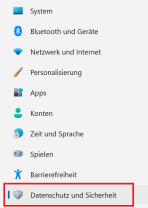
Now open the"Location" option. You must now activate both location services and app access. To do this, move the slider next to the options"Location services" and"Allow apps to access your location".
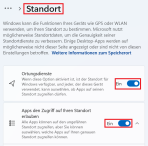
Once this setting has been made, you can now click on"Connect" again in the app. Eduroam should now connect.

ZIMT Support Desk
The central point of contact for using ZIMT services.