Change sender address
On this page you will learn how to change the sender address in Outlook and Webmail (OWA), e.g. to send emails from shared mailboxes or delegated accounts.

Instructions
To be able to send emails from delegated accounts or shared mailboxes that have been set up with Webmail, you must first change the sender address. Your primary address is usually listed here. With Webmail, proceed as follows:
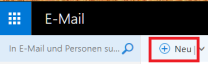
Open a new email and unlink it in a new window.
It is necessary to open the new email in a separate window, otherwise the change to the sender address cannot be made.

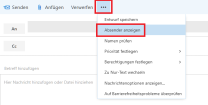
Now display the sender by selecting "Show sender" from the menu ("...").
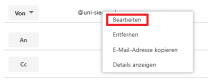
You can now open a menu by right-clicking on the sender address. Select the "Edit" option here.
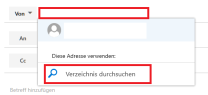
You can then delete the sender address at the top and enter a new one. This must be an address for which you have send authorization (e.g. delegated accounts or shared mailboxes). Then select the address in the directory.
You can now send the mail from the corresponding address.
This process does not permanently adopt the sender address. It must therefore be changed for each new mail.
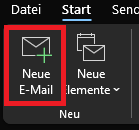
To change the sender address in Outlook (e.g. to send mails via delegated accounts or shared mailboxes), first open a new mail in your Outlook client.

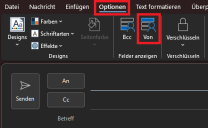
Then open the "Options" tab in the mail window and activate "From" under "Show fields" to display the sender.
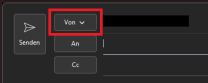
Now click on "From" in the mail draft to display the list of existing senders. You can select a sender here or, if the desired address does not yet exist, add a new sender via "Other e-mail address...".
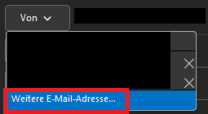
Finally, enter the corresponding address in the field and confirm with "OK".
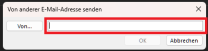
You can now send mails from this address. This setting is usually saved, so you do not have to make it again the next time you send an e-mail.
