Exchange accounts (Apple Mail) (MacOS)
On this page you will learn how to add Exchange accounts to Apple Mail for MacOS devices.

Instructions
To add an account to Apple Mail, first open the client.
If you have not yet added an email account to Apple Mail, the client will prompt you to do so when you open it.
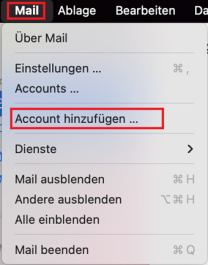
Otherwise, select "Mail" in the taskbar after opening and then "Add account".
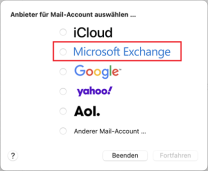
Now select the provider "Exchange" and confirm with "Continue".
Setup
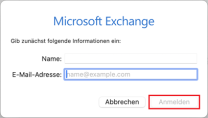
The next step is to start the configuration. First enter your university e-mail address and confirm with "Log in".
This is followed by a prompt. Select the "Configure manually" option here to set up your account manually.
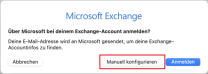
You will then be asked to enter your password.
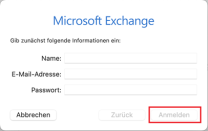
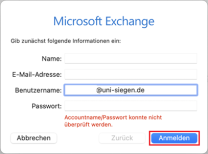
In the next step, in addition to your e-mail address and password, enter your Benutzerkennung@uni-siegen.de
(e.g. g123456@uni-siegen. de). Then confirm with "Log in".
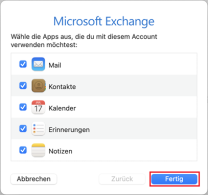
Finally, you can select what can be synchronized. Confirm with "Done" to finish the process.