Inbox rules
On this page you will learn how to create inbox rules in Webmail (OWA) and Outlook.

Instructions
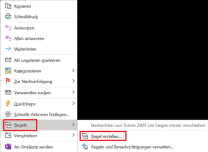
To define a new inbox rule, open your Outlook client and select a message in the desired mailbox.
Right-click on the message to open the drop-down menu and select "Rules" > "Create rule...".
In the next window, you can now define the framework conditions for the new rule. For spam mails, for example, you can check the "Subject contains" box and enter "[SPAM]" in the field. To set the desired action, you can check the "Move item to folder" box.
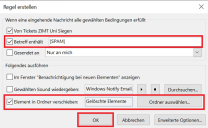
Now select the desired folder. For spam mails, we recommend the "Deleted items" or "Junk e-mail" folder.

Once you have completely defined your rule, you can confirm with "OK".
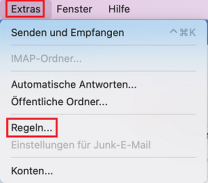
To define new inbox rules, first open your Outlook app. Under the "Extras" menu item, you can select the "Rules" option from the drop-down menu.
In the next window, select the account for which you want to add new rules and click on the "+" symbol.
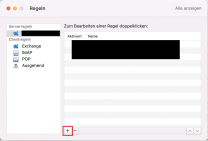
In the next window, click on the "+" symbol again to define a rule.
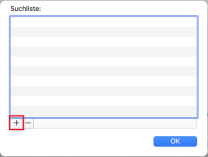
In the new window, you can define the framework conditions for your rule. For spam mails, for example, you can select the condition "Subject or message text" and enter "[SPAM]" in the subject field. You can select "Delete" for the action to be carried out.
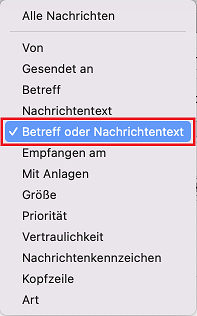
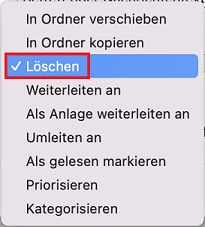
Once you have defined your rule, confirm with "OK".
To delete spam emails directly or to sort out other unwanted emails directly, for example, you can also create inbox rules in your inbox via your webmail account.
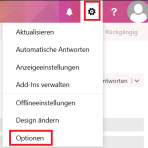
To do this, open your webmail account. Then open the settings via the gear icon at the top right of the window and select "Options".
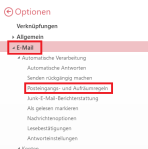
Under the menu item"E-mail" you will find the option "Inbox and clean-up rules". Select this.
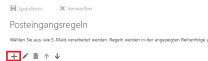
To create a new rule, click on the "+" symbol.
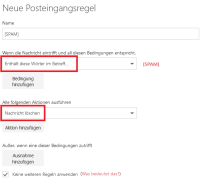
Then enter the configurations for your rule. In the images, this is done as an example for SPAM emails.
For example, under "If the message arrives and meets all these conditions", select the option "Contains these words in the subject...".
Under "Perform all following actions", now select "Delete message".
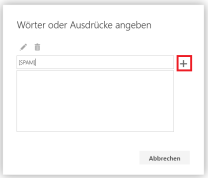
In the next step, enter the relevant words or sentences to be filtered. For spam emails, this would be [SPAM], for example. Click on the "+" symbol to accept the entry and confirm with "OK".
The rule can now be saved by clicking on "OK".
In this way, you can also create further rules with which you can filter your inbox.
