
Instructions
Download
You can download the OpenVPN Connect app here
(On the new page, please select the "MacOS" tab).

Profiles
Additionally download the uni or admin (optional, only if you have admin VPN access).
Confirm the download with "Download".
Installation
Now execute the downloaded file.
Before the installation manager can start, you must specify which installer you want to use.
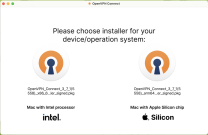
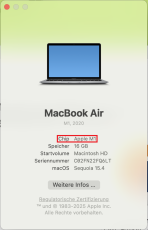
To find out which installer to use for your device, click on the Apple icon in the bar at the top left of your home screen and select the "About this Mac" option. The technical information about your device will then open. If it says "Apple M1" next to "Chip" , for example, select the "Silicon" option, otherwise select "intel".
As soon as the installer has been selected, the installation manager will start.
Confirm in the next window with "Continue".

The Manager now requires your consent to the license agreement.

The installation will then run automatically. In some cases, your device may start a security prompt at the end. You may need to enter your device password and confirm with "Install software". The user name is your device name and is usually already pre-entered.

This completes the installation process and you can continue with the setup.
Setup
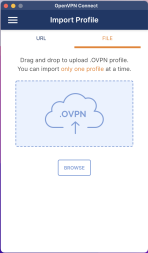
You can now import the downloaded configuration files. This works either via URL or by drag-and-drop via "File".
To add the file via drag-and-drop, select the "File" option and then drag the downloaded file from your download directory into the OpenVPN Connect app window. Alternatively, you can click on "Browse" and select the configuration file via the dialog.
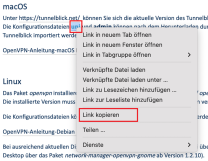
To insert the file via URL, copy the URL and paste it into OpenVPN Connect under "URL". Then confirm with "Next".

When the import is complete, the program requires your ZIMT user ID to continue.
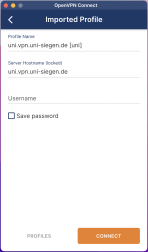
Confirm with "Connect" and enter your password in the next window.
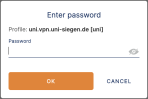
After entering the correct data, your device can now establish a secure connection.
