Outlook - Export Emails
On this page, you'll learn how to export or move emails in Outlook.

Instructions
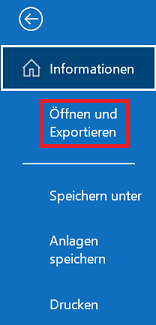
To export emails from your inbox, open Outlook, select the "File" tab, and then choose "Open & Export."
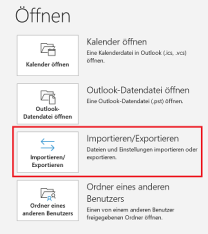
On the next page, select the "Import/Export" option.
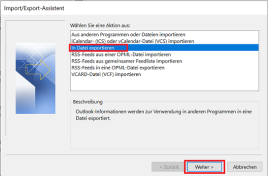
The Import/Export Wizard will now open. Select the“Export to a file” option and click“Next.”
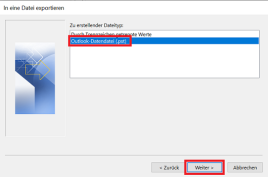
In the next window, you can select the file. Select the“Outlook Data File (.pst)” option and click“Next.”
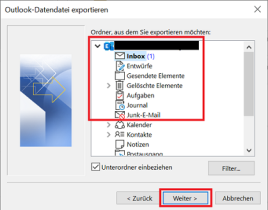
Next, you’ll need to select the folder to be exported.
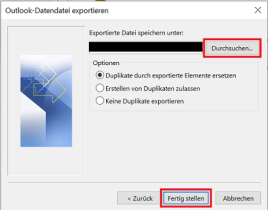
Finally, select a folder where you want to save the file and confirm by clicking“Finish.”
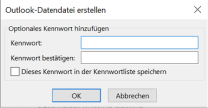
If you want to prevent others from accessing the data file, you can optionally set a password.
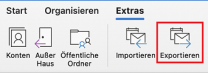
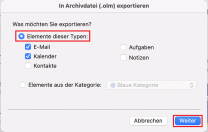
To export emails from your inbox, open the Outlook app and then click the "Tools" tab. Now select the "Export" option.
In the next window, you can select which items you want to export.
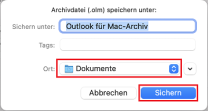
Then select the folder where the file will be saved and confirm by clicking“Save.”
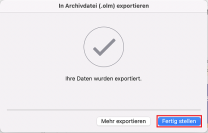
Once the file has been successfully exported, the following window will appear. Now click“Finish” to complete the process.
If you have access to both mailboxes, you can also move emails from one mailbox to another. To do this, open Outlook and, if necessary, sort the emails you want to move into a folder. The entire "Inbox" folder cannot be moved.
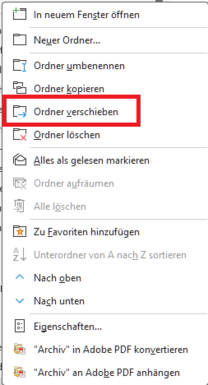
Right-click on the email or folder to open a drop-down menu. Select the “Move” option (or “Move Folder” for folders).
Now select the folder and the mailbox to which you want to move the items. To do this, select the mailbox where you want to move the emails and confirm by clicking“OK.” You can also create a folder in the selected mailbox by clicking “New.”
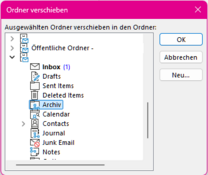
The emails or folders you’ve moved will now appear in the new mailbox. In the case of folders, they may still appear in the old mailbox as well.
