
Instructions
To connect your Windows device to the Eduroam network via Easyroam, first log in to the Easyroam website. To do this, click "Log In" and, in the next step, select the University of Siegen.

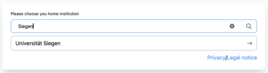
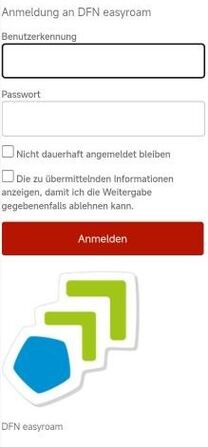
You can now log in with your ZIMT account.
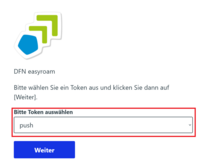
If you have already set up two-factor authentication, you will also be prompted to use it here. To do so, select the appropriate factor (e.g., PUSH) and confirm by clicking “Continue.” Depending on the factor, you will now need to enter a one-time password, or you will receive a notification on your smartphone.
Now select the "Windows" option on the download page. A file will now be downloaded. You can then find it in your "Downloads" folder.
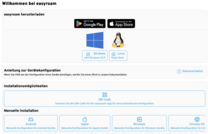
Double-click the downloaded file to begin setup.
Now, in the application, select “Install New Profile” and confirm the pop-up by clicking “Confirm.”
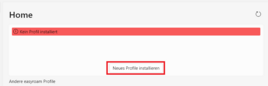
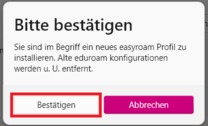
The profile will now be created automatically based on your previous login. You can then view it under "Home."
To connect your macOS device to the Eduroam network via Easyroam, first log in to the Easyroam website. To do this, click "Sign In" and, in the next step, select the University of Siegen.
You can now log in with your ZIMT account.
If you have already set up two-factor authentication, you will also be prompted to use it here. To do so, select the appropriate factor (e.g., PUSH) and confirm by clicking “Continue.” Depending on the factor, you will now need to enter a one-time password, or you will receive a notification on your smartphone.
On the download page, under "Manual Installation," select the "Apple" button and enter a name for the profile (you can choose any name you like, but for better organization, it’s recommended to choose something unique).
In some cases, you’ll also need to authorize the download. To do this, click “Allow” in the corresponding pop-up window.
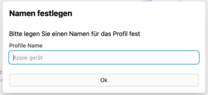
The profile will now download. Next, open the Control Panel and go to “General” -> “Device Manager.” Here, you can add the downloaded profile by clicking the “+” icon and selecting the profile from your Downloads folder.
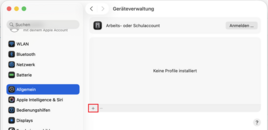
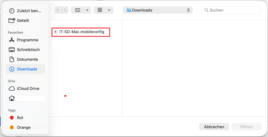
In the next window, click "Continue."
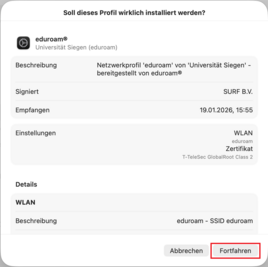
A pop-up window will now open. Confirm this by clicking "Continue" as well.
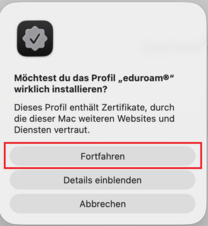
Your profile will now be created automatically based on your previous login. You can then view it under "Home."
Unfortunately, there have recently been a number of issues with setting up easyroam on iOS devices where the setup was performed via the app. So, if you’re having trouble connecting after successfully setting up easyroam on an iOS device, remove the existing connection and try setting up easyroam manually. To do this, follow the same steps as for setting it up on macOS (see above).
To use the easyroam app to set up Eduroam, first download it from your device’s App Store.
Then open the app and tap “Continue in Browser” to begin the sign-in process.
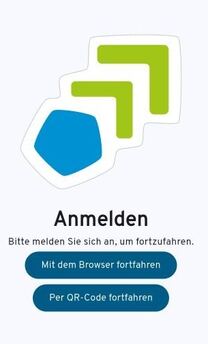
In the next step, select the University of Siegen.
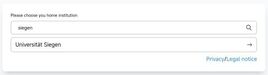
You can now log in with your ZIMT account.
If you have already set up two-factor authentication, you will also be prompted to use it here. To do so, select the appropriate factor (e.g., PUSH) and confirm by clicking “Continue.” Depending on the factor, you will now need to enter a one-time password, or you will receive a notification on your smartphone.
By clicking "Request New Profile," you can now create a new Eduroam profile for your device.
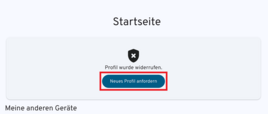
Finally, confirm the connection prompt to set up the profile.
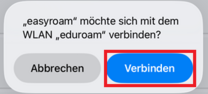
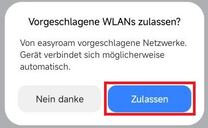
The profile will now be created automatically based on your previous login. You can then view it under "Home."
To connect your Windows device to the Eduroam network via Easyroam, first log in to the Easyroam website. To do this, click "Log In" and, in the next step, select the University of Siegen.
You can now log in with your ZIMT account.
If you have already set up two-factor authentication, you will also be prompted to use it here. To do so, select the appropriate factor (e.g., PUSH) and confirm by clicking “Continue.” Depending on the factor, you will now need to enter a one-time password, or you will receive a notification on your smartphone.
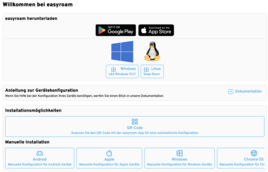
Now select the "ChromeOS" option on the download page. A file will now be downloaded. You can then find it in your "Downloads" folder.
Now open your Chrome browser and enter the following path in the address bar: chrome://network#general
You will now be taken to a page where you can import the downloaded file.
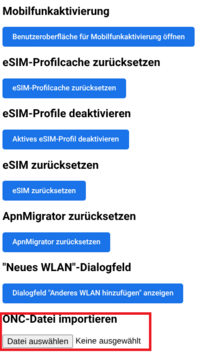
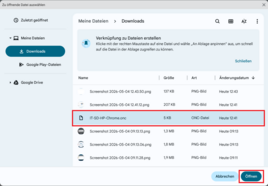
Under “Choose File,” you can select the downloaded file and import it.
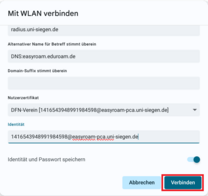
After importing the file, select Eduroam from your Wi-Fi menu and click “Connect” in the window that opens. It will take a moment for the connection to be established.
Common Problems
If you have previously connected to eduroam and the connection is no longer working, you’ll need to remove the eduroam profile or the eduroam connection from your device.
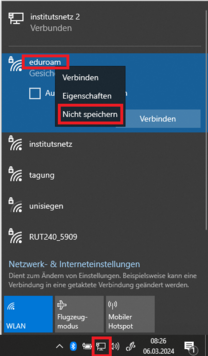
On Windows devices, you can remove the connection by opening your Wi-Fi connections from the taskbar and selecting“eduroam.” Right-click the eduroam connection and select“Forget” from the drop-down menu.
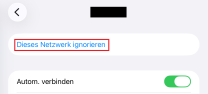
On macOS and iOS devices, remove the connection by opening it in your Wi-Fi settings (by clicking the Info button) and then selecting “Ignore this network.”
On Android devices, remove the eduroam connection by selecting the connection in your Wi-Fi settings and then tapping “Remove network.”
On ChromeOS devices, remove the connection via the Wi-Fi settings by selecting the connection under “Known Networks” and then removing it.
In some cases, problems may arise when setting the time zone and time if these are not configured correctly on the device. The correct time zone in Germany is generally: UTC+01:00 Amsterdam, Berlin, Bern, ...
Therefore, make sure your time zone and time are set correctly. This process varies depending on the device.
Windows users can adjust this setting in System Preferences under "Date & Time."
macOS and iOS users can do this via System Preferences under "General" > "Date & Time."
On Android devices, you’ll usually find this setting under “More Settings.”
If you have disabled location services in the security settings, eduroam may be unable to establish a connection on Windows 11 devices even if the credentials have been entered correctly. In this case, the following error code will be displayed:

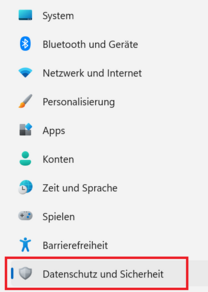
To resolve this issue, Location Services must be enabled, at least during the eduroam setup process. To do this, open your Settings and then select the "Privacy & Security" menu item.
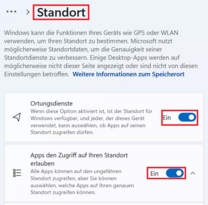
Now open the“Location” option. You must enable both Location Services and app access. To do this, slide the toggle next to the“Location Services” and“Allow apps to access your location” options.
Once this setting has been configured, you can now tap“Connect” again in the app. Eduroam should now connect.
Currently, iOS users face issues regarding the connection via easyroam on their mobile devices. If you are facing issues with your connection on an iOS device, it is recommended to delete the current profile set up via easyroam, and proceed the setup manually. To do the manual set up, please regard the manual on macOS (see Instructions above).
