Skip to main content

Institute network

On this page you can find out how to connect your device to the institute network.

ZIMT Logo

Prerequisites

In order to connect to the institute network, a few requirements must first be met:

  • Your institute must have an institute network.
  • Your access to the institute network must be activated.
  • The user ID must correspond to the following format:

Benutzerkennung@Institutsnetz (e.g. g123456@institutsnetz)


The suffix @Institutsnetz is selected here as an example and depends on the respective configuration of the institute network.

Instructions Institute network

Open your WLAN settings via the system settings and select the option Institute network under Available networks.

Android Einstellungen mit markierter Option "WLAN"
Android WLAN Einstellungen mit markierter Option "institutsnetz"

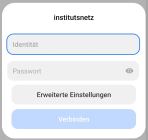
Now enter your user ID@institutsnetz (e.g. g123456@institutsnetz) and your ZIMT password. Confirm with Connect.

Einstellungen für institutsnetz mit Feld für Nutzerkennung und Passwort; Details in der Bechreibung.

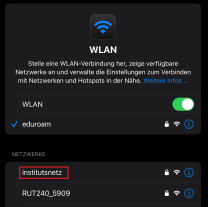
Open your WLAN settings via the system settings and select the option Institute network under Available networks.

iOS WLAN Einstellungen mit markierter Option "institutsnetz"

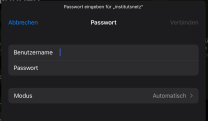
Now enter your user ID@institutsnetz (e.g. g123456@institutsnetz) and your ZIMT password. Confirm with Connect.

Einstellungen für institutsnetz mit Feld für Benutzername und Passwort; Details in der Beschreibung

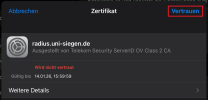
Now confirm the request with Trust to trust the certificate.

Zertifikatsabfrage mit markiertem Button "Vertrauen"

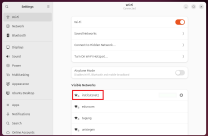
Open your WLAN settings and then click on Institute network.

Linux WLAN Einstellungen mit markierter Option "institutsnetz"

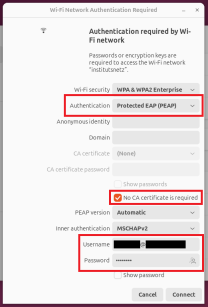
Then select the option Protected EAP (PEAP) under Authentication and check the box next to No CA certificate is required. Now enter your user ID@institutsnetz (e.g. g123456@institutsnetz) and your ZIMT password. Confirm with OK.

WLAN Einstellungen für institutsnetz; Details in der Beschreibung

Open your Wi-Fi settings by selecting the Wi-Fi tab in the menu on the left-hand side via the system settings. Now select the institute network.
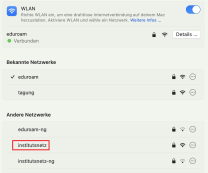
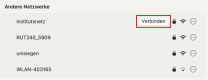
MacOS WLAN Einstellungen mit markierter Option "institutsnetz"
MacOS WLAN Einstellungen mit markiertem Button "Verbinden" neben dem Netzwerk "institutsnetz"

Now enter your user ID@institutsnetz (e.g. g123456@institutsnetz) and your ZIMT password. Confirm with OK.
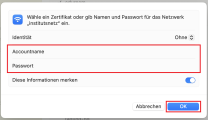
WLAN Einstellungen für institutsnetz mit Feld für Benutzerkennung und Passwort; Details in der Beschreibung

Now confirm the request with Continue to trust the certificate.
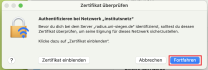
MacOS Zertifikatsabfrage mit markiertem Button "Fortfahren"

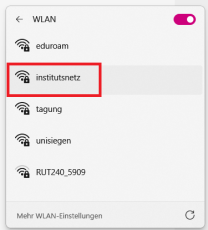
Open your available networks by clicking on the WLAN icon in the bottom right-hand corner of your taskbar and select Institute network.

Windows WLAN Einstellungen mit markiertem Netzwerk "institutsnetz"

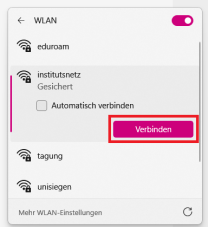
Now click on Connect.

Windows WLAN Einstellungen mit markiertem "Verbinden" Button neben dem Netzwerk "institutsnetz"

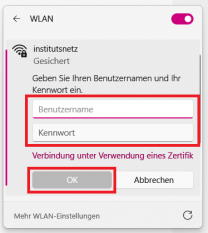
Now enter your user ID@institutsnetz (e.g. g123456@institutsnetz) and your ZIMT password. Confirm with OK.

Windows WLAN Einstellungen für institutsnetz mit Feld für Nutzerkennung und Passwort; Details in der Beschreibung
close up employee using microphone

ZIMT Support Desk

The central point of contact for using ZIMT services.