| Affiliation | OMNI Cluster |
| Free of charge |
Free of charge |
|
Documentation |
|
| Pre-installed on the cluster |
Linaro Forge version 23.1.1 |
Introduction
The Linaro Forge Suite offers a range of tools, available both graphically and via the command line, tailored for debugging and profiling parallel and sequential programs. It supports many parallel architectures and models, including MPI, CUDA and OpenMP. It consists of the following tools:
- Linaro DDT: This tool specializes in high-performance parallel application debugging.
- Linaro MAP: This tool is intended for the creation of performance profiles and optimization instructions.
- Linaro Performance Reports: This tool is used to summarize and characterize the performance of both scalar and MPI applications.
The documentation is available online.
On the OMNI cluster, Linaro Forge version 23.1.1 is installed. In order to use this debugger, load the debugger/linaro-forge module using the following command:
$ module load debugger/linaro_forgeThe userguide is also available in PDF form inside the installation directory, specifically in the following folder:
/cm/shared/omni/apps/linaro_forge/23.1.1/doc/userguide-forge.pdfLinaro DDT
Linaro DDT is a powerful graphical debugger suitable for many different development environments. This tool supports:
- C, C++, and all derivatives of Fortran, including Fortran 90.
- Limited support for Python. For more information, see Python debugging.
- Parallel programming languages/models, including MPI, UPC and Fortran 2008 co-arrays.
- GPU languages such as HMPP, OpenMP Accelerators, CUDA, CUDA Fortran and HIP.
The following steps show the process of using this tool to debug an application.
First load the appropriate module with the following command:
$ module load debugger/linaro_forgeStart the Linaro DDT as a graphical application in a new window with the following command:
$ ddt &The following window opens, in which Linaro DDT is selected by default.

Note: Like all other graphical applications on the cluster, your SSH connection must be established with X11 support and an X server must be running on your PC; see also here.
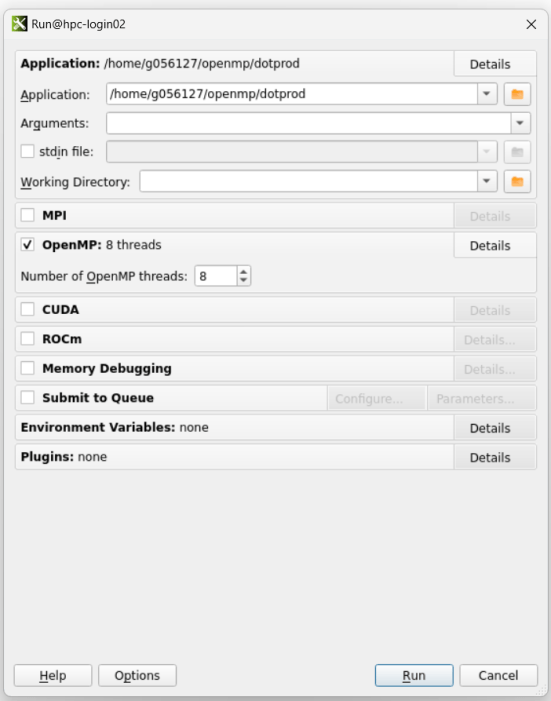
To start and debug a program, select the RUN option. A new window will open in which the application to be debugged should be selected. Depending on the type of application, select the appropriate options such as "OpenMP", "MPI", "CUDA", etc. Then click on the "Run" button, which will open the DDT interface.

Note: When you compile the program, add a debug flag to your compile command. For most compilers this is -g. It is recommended to disable compiler optimizations as they can lead to unexpected results when debugging.
The DDT interface opens a source code viewer where you can set breakpoints, control program execution, track stacks, etc. to debug the application. Further details can be found in the online documentation.

To save the session, select File ‣ Save Session. This will export HTML and text files that can be viewed with the following command:$ firefox name.htmlReplacethe file name.html with your own file name in this command. This opens a firefox window in which the overview of the application is displayed.

To end your current session, select File ‣ End Session.
Using the command line
To run DDT without a GUI, use the following command:
$ ddt --offline ./executable_name.exeUse ddt --help to learn more about the command. The output is generated as an HTML file.
Example:
(base) [g056127]$ ddt --offline --openmp-threads=8 ./dotprod
Linaro Forge 23.1.1 - Linaro DDT

Debugging : /home/g056127/openmp/dotprod
MPI implementation : Auto-Detect (Open MPI)
Memory debugging enabled : No

Offline log written to: 'dotprod_1p_1n_4t_2024-02-15_19-51.html'
Linaro MAP
MAP is a source code level profiler that shows how much time was spent on each line of code. It shows the longest running lines of code and explains why.
The following steps show how you can use this tool to debug an application.
First, load the appropriate module with the following command:
$ module load debugger/linaro_forge/23.1.1Start Linaro MAP as a graphical application in a new window with the following command:
$ map &The following window opens, in which Linaro MAP is selected by default.

Note: Like all other graphical applications on the cluster, your SSH connection must be established with X11 support and an X server must be running on your PC; see also here.
To profile a program, select the PROFILE option. This opens an interface for selecting the program and configuring the process. Depending on the type of application, select the correct options such as "OpenMP", "MPI", "CUDA" etc. Then click on the "Run" button, which will open the MAP interface.
The MAP interface displays the source code, application activity and metrics such as memory usage, CPU usage, etc. It shows the memory and CPU usage for each line of code.

You can save the MAP profile under File ‣ Save Profile Data as. The extension of the file is .map. The profile can also be exported as JSON via File ‣ Export Profile Data as JSON. The map profile can be displayed again with the second option "LOAD PROFILE DATA FILE" on the start page of Linaro MAP.
Using the command line
To run MAP without a GUI, use the following command:
$ map --profile ./executable_name.exeUse map --help to learn more about this command. This command creates a MAP output file with the extension .map.
Example:
(base) [g056127]$ map --profile --openmp-threads=8 ./dotprod
Linaro Forge 23.1.1 - Linaro MAP

Profiling : /home/g056127/openmp/dotprod
Linaro Forge sampler : preload
MPI implementation : Auto-Detect (Open MPI)

MAP analysing program...
MAP gathering samples...
MAP generated /home/g056127/openmp/dotprod_1p_1n_8t_2024-02-15_19-57.map

Linaro MAP profiling summary
============================
Profiling time: 4 seconds
Peak process memory: 8042729472 B (~7.49 GiB)

Compute: 100.0% (3.8s) |=========|
MPI: 0.0% (0.0s) |
I/O: 0.0% (0.0s) |
  (based on time on the main thread)
Linaro Performance Reports
Linaro Performance Reports provides the most effective way to characterize and understand the performance of HPC application runs.
A one-page HTML report answers a number of important questions for each HPC site:
- Is this application optimized for the system it is running on?
- Does it benefit from running at this scale?
- Are there I/O or network bottlenecks affecting performance?
- What hardware, software or configuration changes can be made to further improve performance?
There are three different methods for creating the performance report, which are described below. You can use any of the methods.
- Using the exe file: To generate the performance report, use the following command:
$ perf-report ./executable_name.exeReplace the executable_name.exe file with your program. This command generates the two files with the extensions .html and .txt, which can be displayed with the browser.
- Use a previously created MAP output file: If you have already created the
.mapoutput file using the MAP tool, you can use the following command to create the performance report.
$ perf-report profile.mapReplace the profile.map file with your MAP output file. This command creates two files with the extensions .html and .txt, which can be displayed with a browser.
-
Using the MAP interface: You can also view or export the performance report using the Reports menu available in the MAP interface menu bar (see below):

- See the online documentation for details.
Bash example script
Below is an example of a jobscript that allows you to debug offline, create a profile and generate the performance report while queuing your job to the HPC nodes.
#!/bin/bash
#SBATCH --job-name=profiler # name for your job
#SBATCH --partition=short # partition to run in
#SBATCH --ntasks=1 # total number of tasks across all nodes
#SBATCH --ntasks-per-node=16 # total number of tasks across all nodes<
#SBATCH --time=00:30:00 # total run time limit (HH:MM:SS)
#SBATCH --output=omni_%x_%j.out # where to save the output ( %j = JobID, %x = scriptname)
#SBATCH --error=omni_%x_%j.err # where to save error messages ( %j = JobID
#SBATCH --mem=75G # 75 GB RAM

# Purge modules to get a pristine environment:
module purge

# Load default module
module load DefaultModules

# Load Linaro Forge
module load debugger/linaro_forge/23.1.1

# Command to offline debug
# replace `executable_name.exe` with executable program
ddt --offline ./executable_name.exe

# command to generate map profile
# replace `executable_name.exe` with executable program
# replace output file name 'profile'
# this generates a 'profile.map' file which can be viewed through Linaro MAP tool.

map --profile --output=profile ./executable_name.exe

# command to generate performance report
perf-report ./executable_name.exe
We strongly recommend reading the online documentation provided by Linaro Limited.