E-mail accounts (Mozilla Thunderbird)
On this page you will learn how to set up your e-mail account as an IMAP account with Mozilla Thunderbird.

Instructions
Download the
You can download the Mozilla Thunderbird client here
download.
Use the "Download" button to download the version that corresponds to your system settings.
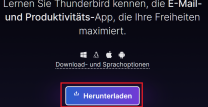
You will then find the setup file in your download folder.
Installation
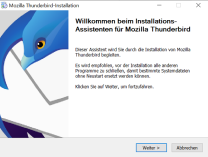
Execute the setup file to start the installation manager and confirm with "Next".
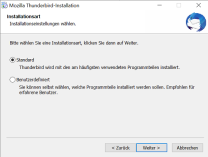
In the next window, select the installation type "Standard" and confirm again with "Next".
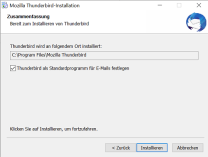
If desired, you can then select the storage location and confirm with "Install".
Finally, click on "Finish".
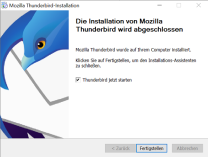
Thunderbird should now open and you can start setting it up.
Setup
Now enter your name, your ZIMT e-mail address and your password under "Set up an existing e-mail address" and click on "Set up manually".
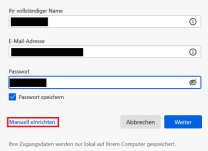
Complete the manual setup as follows:
- Incoming mail server:
- Protocol: IMAP
- Hostname: mail.uni-siegen.de
- Port: 993
- Connection security: SSL/TLS
- Authentication method: Password, normal
- Username: Username +@uni-siegen.de
(g123456@uni-siegen.de)
- Outgoing mail server:
- Hostname: mail.uni-siegen.de
- Port: 587
- Connection security: STARTTLS
- Authentication method: Password, normal
-
Username: Username +@uni-siegen.de
(e.g. g123456@uni-siegen. de)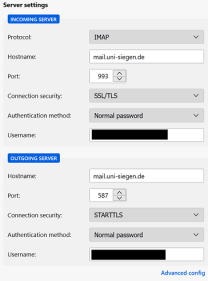
Check your data and confirm with "Done". After successful login the following message appears:

