Exchange accounts (Apple Mail) (iOS)
On this page you will learn how to set up Exchange accounts with Apple Mail on iOS devices.

Instructions
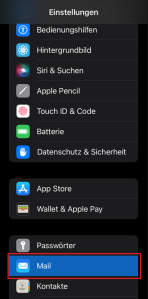
To add an Apple Mail account on your iOS device, open your system settings and select the "Mail" option.
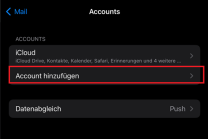
Now select the "Accounts" option in the "Mail" menu. Then open the configuration by clicking on "Add account".
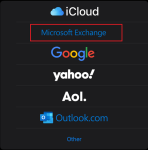
You will now be asked what type of account should be added. Select "Microsoft Exchange".
In the next step, enter your university e-mail address. Confirm with "Next".

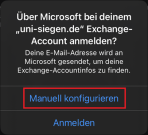
You will then be asked whether you would like to configure your account manually. Confirm with "Configure manually".
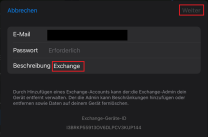
Enter your e-mail address again and your corresponding password. Confirm with "Next".
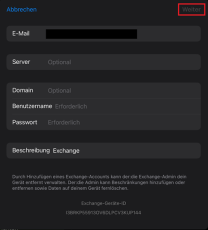
You can configure your account in the next window. Enter your university e-mail address, your user name +@uni-siegen.de
(e.g. g123456@uni-siegen. de) and your password. Under "Server" enter mail.uni-siegen.de
enter.
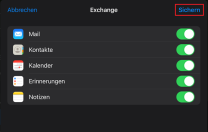
Finally, you can select which modules are to be synchronized and confirm with "Save".