
Download sciebo
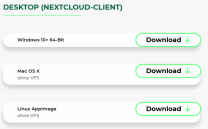
Download the sciebo desktop client directly from the download page of hochschulcloud.nrw:
https://www.hochschulcloud.nrw/de/download/index.html
On the next page, select the download corresponding to the operating system of your device. The downloaded file can then be found in your download directory.
Installation
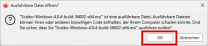
Execute the file to start the installation. Confirm the pop-up window with OK.
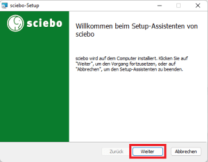
Confirm the following two windows with Next.

Then confirm with Install.

The installation will now run automatically. As soon as it is finished, you can close the wizard by clicking Finish.

Setting up the client
Open the client to start the setup. You will now be asked to log in. The corresponding website should open automatically in the browser. If this does not happen, you can do this by clicking on the Open browser button.
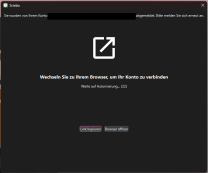
You will be redirected to your browser. Click on Log in to access the login window.
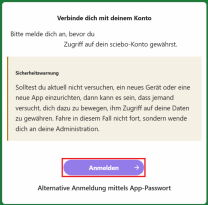
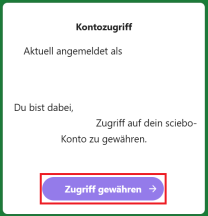
Then enter your user ID in the form "username +@uni-siegen.de (e.g. g123456@uni-siegen.de) and your chosen password to log in. Click on Grant access in the next window to complete the login.
 im oberen Bereich. Darunter befindet sich das Anmeldefeld mit der Überschrift „Anmelden bei sciebo“. Es gibt zwei Eingabefelder, eines für den Benutzernamen und eines für das Passwort, daneben ein Symbol zum Einblenden des Passworts. Unten befindet sich ein grüner Button mit der Aufschrift „Anmelden“. Unter dem Button stehen die Links „Passwort vergessen?“ und „Mi](/files/default/styles/col_md_4/public/media/image/2025-11/01-einrichtung-02.png?itok=yUhKFyw0)
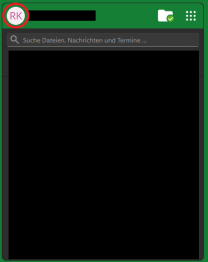
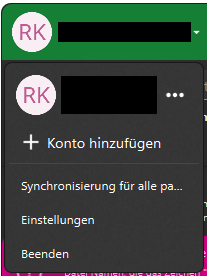
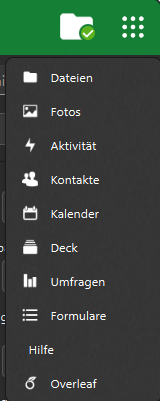
Sciebo will now synchronize your files. You will then find the new client in your taskbar. You can find the settings via the nine-dot/cube symbol at the top right, your files via the avatar symbol, here "RK".
Removing the client
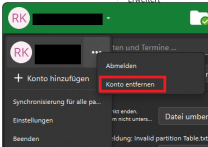
To remove sciebo from your computer, you must first disconnect, otherwise your data will also be lost in the cloud. To do this, open the sciebo client and select the Remove account option under User account.
Then confirm the pop-up window with Remove connection.
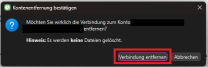
Once the connection has been removed, you can safely remove the locally stored files from your device.
