
Cisco Secure Endpoint Protection
License |
Employees and students can install and use the software on work devices or for student purposes |
Account required? |
Yes |
Languages |
German English |
Operating system |
Windows |
Prerequisite / Booking |
Active ZIMT account The software can be requested in the user account management |
Miscellaneous |
|
Support |
If you need support, you can contact the Support Desk If you have already installed Cisco Secure Endpoint, please send us the GUID of your device. To do this, open the Cisco Secure Client and click on the cogwheel to access the settings. Click on Secure Endpoint → Statistics → GUID and copy the entry with CTRL+C. Then paste the information into your email with CTRL+V. This GUID is necessary so that we can uniquely identify your device. |
If Sophos Home Premium is already installed on your device and you want to use Windows Defender, proceed as follows to uninstall Sophos:
Uninstall Sophos using the "Uninstall" function, which you can find in the Windows Control Panel under "Add or remove programs".
Use this sequence to uninstall (individual components may not be present):
- "Sophos Home"
- After uninstalling, it is recommended to restart the computer.
Activate Windows Defender
Windows Defender is an integrated security program from Microsoft that protects your computer against viruses, malware and other threats.
Step 1: Open Windows security
- Click on the Windows icon at the bottom left of the taskbar to open the Start menu.
- Enter "Windows Security" in the search field and select the appropriate search result.
Step 2: Navigate to "Virus and threat protection"
- In Windows Security, click on the "Virus and threat protection" tab. Here you will find an overview of the current protection status of your computer.
Step 3: Activate real-time protection
- Under 'Virus and threat protection', click on the 'Manage virus & threat protection settings' link.
- Scroll down to "Real-time protection" and make sure the switch is set to "On". This activates Windows Defender Real-Time Protection.
Step 4 (optional): Perform a quick scan
- If you also want to be sure that your system is free of malware, run a quick scan. Click on "Quick scan" under "Current threat protection".
- Windows Defender will now check your computer for possible threats.
Make sure that real-time protection and cloud-based protection always remain activated to protect your PC from future threats.
FAQ
Windows
On the endpoint device, open Cisco Secure Client → Settings (on the gear icon) ->Click on "General" (on the left side of the window)->Click on the "Settings" tab -> Check the "Show Notifications" checkbox
To view the complete history of Cisco Endpoint events:
1. Open Cisco Secure Client.
2. Click on "Settings" (on the gear icon) -> Click on "Secure Endpoint" (on the left side of the window) -> Click on the "Advanced" tab -> Click on "Event History".
Open Cisco Secure Client -> select the scan type from the drop-down menu -> click on "Start".
Right-click on the file → click on "Cisco" → "Scan Now".
The virus definitions and Cisco Secure Client are updated automatically in the background.
MacOS
You can click on the Secure Endpoint Connector icon in the MacOS menu bar to access the Connector's user interface (UI).
In the ribbon there, click on "Events" to access the events.
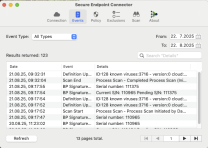
Click on the Secure Endpoint Connector icon in the MacOS menu bar to access the Connector's user interface (UI).
In the ribbon there, click on "Scan" to get to the execution planning of the Connector.
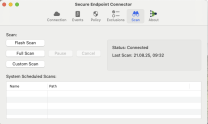
In the "Scan" window, you can initiate a "Flash Scan", "Full Scan" and "Custom Scan".
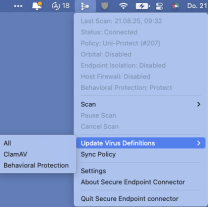
The virus definitions and Cisco Secure Client are updated automatically in the background.
You can also initiate a manual update process via the context menu
Linux
The log files with information about any threats found
are located in the directory: /var/log/cisco
The path may vary depending on the distribution.
An immediate virus scan of the
system can also be initiated via the command line tool. To do this, execute the following command
for a flash scan:
/opt/cisco/amp/bin/ampcli scan flash
or for a full scan:
/opt/cisco/amp/bin/ampcli scan full
or To scan a specific file or directory
/opt/cisco/amp/bin/ampcli scan custom
Help for the command line tool can be called up with the following command
:
/opt/cisco/amp/bin/ampcli help
The virus definitions and Cisco Secure Client are updated automatically in the background.
