Exchange accounts (Outlook) (Windows)
On this page you will learn how to set up Exchange accounts in Outlook on Windows devices.

Instructions
Note
A mail client named "Outlook (new)" is available for Windows and macOS, is offered integrated in Windows 11 23H2 and replaces the previous "Mail" application. There are some clear differences to Outlook from the Office package. The following Microsoft article shows the differences in appearance.
One of the main differences is the lack of the important Exchange connection - see FAQ article: The new Outlook
The use of "Outlook (new)" is therefore not recommended. Instead, employees and students of the University of Siegen can book the Office package free of charge. The Outlook included in this package is fully usable and is also supported by the ZIMT.
Setting up
To set up your Outlook account (as part of the Office package or as a standalone version), first open the client. If you have not yet set up an Outlook account, a window should open automatically prompting you to do so.
Enter your e-mail address and click on "Advanced options". Check the box "I would like to set up my account manually".
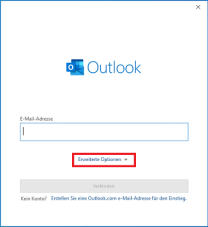
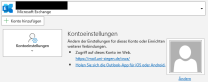
If you already have an account linked to Outlook, you can click on "File" and then on "Add account". The same window will then open.
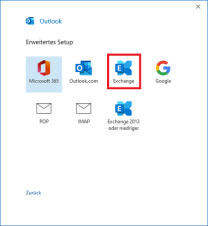
In the next step, select the "Exchange" option.
When prompted for a password, enter your ZIMT user ID "+@uni-siegen.de" (e.g. g1234565@uni-siegen.de) and your ZIMT password.
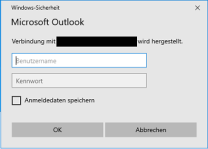
Note: If your e-mail address is entered here under "User name", you can enter the login data manually via Further options. Please make sure that the user name corresponds to the format above.
Now confirm with "Next".
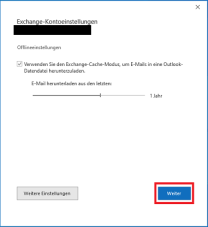
As soon as your account has been successfully set up, this window will appear. Finally, confirm with "Process completed".
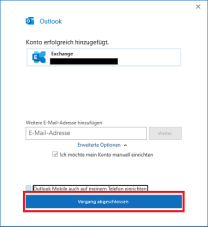
This completes the account setup.
