Install Microsoft Office
This page contains manuals to guide you through the process of installing the Microsoft 365 Office programs on your devices.

Prerequisites
User account management
To be able to use licensed software such as Microsoft 365 or Adobe, you must first book the corresponding licenses. You can find instructions on booking licenses here:
The data transfer to Microsoft takes place at scheduled times. Due to the schedule , waiting times of up to one hour may occur. For this reason, it may take some time after booking before the installation can be carried out.
Instructions
Download the app
To use the mobile version of Microsoft 365, first download it from the App Store on your device.
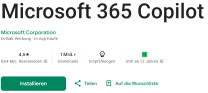
Then open the app.
Setup
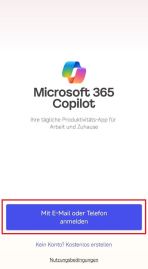
The app will now ask you to log in or create an account. Enter your ZIMT user ID+@uni-siegen.de (e.g. g123456@uni-siegen.de) in the field below to be redirected.
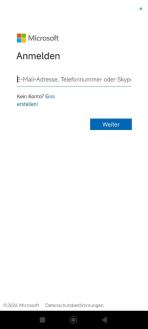
You will now be redirected to the university's authentication website. Log in here again with your ZIMT account.
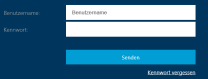
Now confirm the data protection settings with "OK" and restart the app. The app will now synchronize your account.
Creating documents
To create a document, click on the "Create" button at the bottom right of the screen.
You can now select the format here.
Please note
Please note that the use of OneDrive is not enabled for data protection reasons. On mobile devices, care must therefore be taken to ensure that files are created and saved locally.
The use of the individual apps (Word, Excel,...) prevents the creation of new documents on iOS, it is therefore necessary to install the Microsoft 365 Copilot app.
Download the app
To use the mobile version of Microsoft 365, first download it from the App Store on your device.
Then open the app.
Installation
To be able to use the app, you must now log in. In the window that opens, select the "Sign in" option.
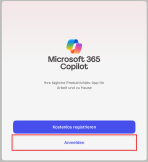
Enter your ZIMT user ID+@uni-siegen.de (e.g. g123456@uni-siegen.de) in the next window.
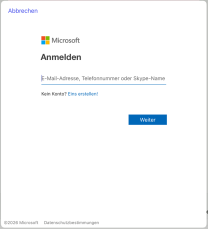
You will now be redirected and must log in again with your ZIMT account.

Once you have successfully logged in, you can now use the app.
Creating documents
To create a document, open the left side menu, click on the "Create" button and select the desired format.
You will then be asked in which app you would like to create the file. Select the option"Continue in MS365 Copilot".
Download Office 365
To download Office 365, first log in here
with your user ID+@uni-siegen.de (e.g. g123456@uni-siegen.de) and the corresponding ZIMT password.
Note: If you receive a notification about Copilot after logging in, you can ignore it without hesitation.
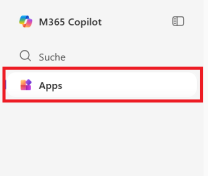
On the Office 365 website, you can now select the "Apps" option in the lower left area.
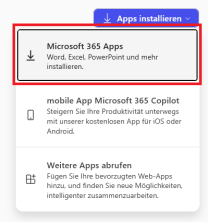
In the upper right area under "Apps" you will now find the option "Install apps". Select the "Microsoft 365 Apps" item there.
The Office 365 setup file will now be downloaded. You will then find it in your download directory.
Installation and setup
Once the download is complete, you can now run the file to start the installation.
Now click on "Continue" in the installation manager.
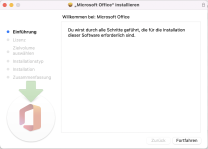
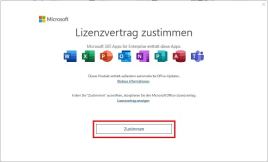
Click on "Continue" again to agree to the license terms.
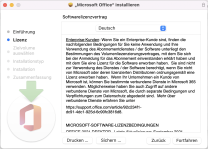
A pop-up will now open in which you must confirm with "Accept".
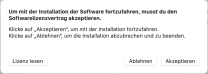
Now confirm with "Install" and enter your device password.
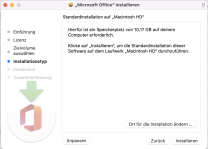
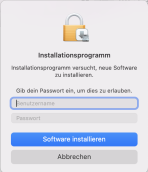
You can now close the installation manager.
Logging in
The Office apps are now available on your device. You can access them via the Launchpad.
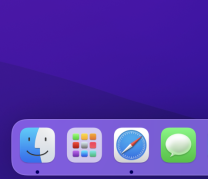
Call up the desired app via the Launchpad and click on "Sign in".
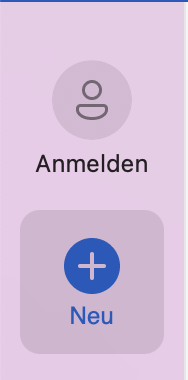
Here you must now enter your user ID + @uni-siegen.de (e.g. g123456@uni-siegen.de).
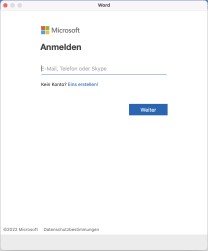
You will then be redirected to the authentication website. Log in here again with your ZIMT account.
Once you have successfully logged in, the process is now complete and the Office apps are ready to use.
To download Office 365, first log in here
with your user ID+@uni-siegen.de (e.g. g123456@uni-siegen.de) and the corresponding ZIMT password.
Note: If you receive a notification about Copilot after logging in, you can ignore it without hesitation.
On the Office 365 website, you can now select the "Apps" option in the lower left area.
In the upper right area under "Apps" you will now find the option "Install apps". Select the "Microsoft 365 Apps" item there.
The Office 365 setup file will now be downloaded. You will then find it in your download directory.
Installation and setup
Now select the installation manager in your download directory and run it. This may take a few minutes.
After installation, you can call up the desired Office 365 application to sign in.
To do this, either select the "Sign in" option in the upper right area of the window or the "Account" option in the lower left area of the window.

Now enter your ID with @uni-siegen.de (e.g. g12345@uni-siegen.de) in the dialog window.
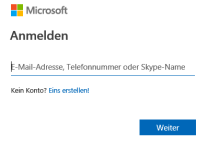
You will now be redirected to the authentication website. Log in here again with your ZIMT account.
Finally, agree to the license conditions.