Outlook calendar
On this page you will learn how to share a calendar in Outlook or add a shared calendar.

Create calendar
To create a new calendar in Outlook, first open the calendar option in your Outlook window.

Then select the "Organize" tab in the top menu bar. Click on "New calendar" and close Outlook to apply the changes.
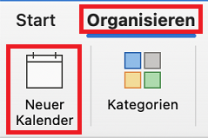
Open Outlook again and hold down the CMD key while clicking on the new calendar to rename it.
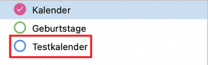
Your new calendar has now been created.
To create a new calendar in Outlook, first open the calendar option in your Outlook window.

Then right-click to select your calendar. A drop-down menu will open. Select "New calendar" here.
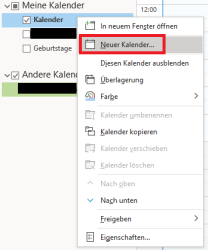
You can name your calendar in the next window. Make sure that it is saved under "Calendar" and confirm with "OK".
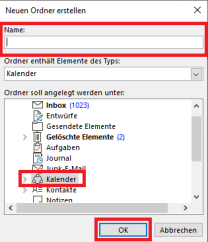
Your new calendar has now been created.
Share calendar
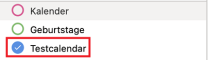
To share a calendar, select it from your calendar list.
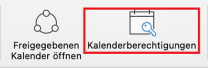
Now select the "Calendar permissions" option in the top menu bar.
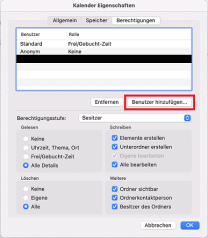
A window will open in which you can add a user and set the permissions for this user. Click on "Add user" here.
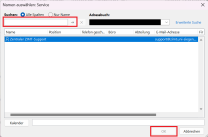
In the next window, you can add a user using the search function. Confirm with "Add" to return to the previous window.
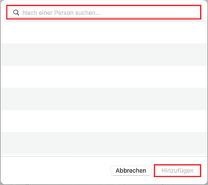
Now select the desired permissions for the new user and confirm with "OK".
Your calendar should now be visible in the new user's Outlook app.
Once this process has been completed, the calendar should be visible in the new user's calendar list.
To share a calendar, right-click on the desired calendar. A drop-down menu opens. Select "Share" here.
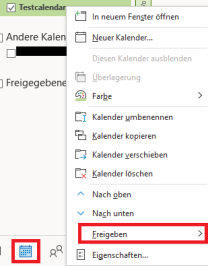
In the next menu, select "Calendar permissions".

A new window will now open in which you can add a new user. Click on "Add...".
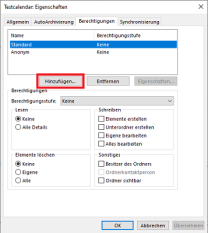
In the next window, you can add a user from your address list. Select a user and then confirm with "OK".
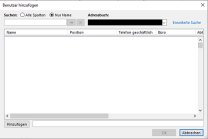
In the previous window, you can now select the new user and specify the authorizations and authorization level. Confirm with "Apply" and "OK" to apply your changes.
Once this process has been completed, the calendar should be visible in the new user's calendar list.
To change the permissions of people with whom you have shared your calendar, first open Outlook and then your calendar via the calendar icon.
Right-click on the shared calendar to open the "Sharing and permissions" option.

In the next window, you can now select the person whose permissions you want to change and adjust them accordingly. Then confirm your changes with "OK".
Add shared calendars

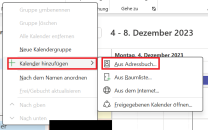
To add a calendar shared with you, you will often receive an email with a link. However, this method does not always work reliably. Calendars can also be added manually. To do this, open your calendars in Outlook. Then right-click to open a drop-down menu. Select the option "Add calendar" and then "From address book".
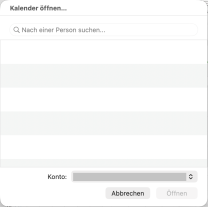
In the next window, enter the name or email address of the person who has shared the calendar with you or the account under which the calendar was created. You can start the search by clicking on the arrow. As soon as you have selected the correct entry, you can confirm with "OK". The calendar will then be displayed under your calendars.