Install Adobe CC (iOS)
On this page you will learn how to install Adobe Creative Cloud on iOS devices.

Instructions
Book a license
To be able to use licensed software such as Office 365 or Adobe, you must first book the corresponding licenses. You can find instructions on how to book licenses here.
Download
To use the Adobe Creative Cloud on your iOS device, open your App Store and download the Adobe Creative Cloud app.
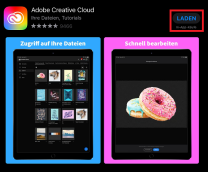
You may need to enter your Apple ID password to authorize the download to continue. The app download is free of charge.

Login
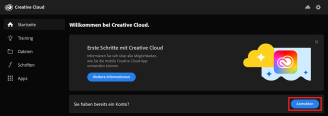
Now open the app to log in. To do this, click on the "Sign in" button next to "Already have an account?".
In the next step, select the option "Continue with Adobe ID".
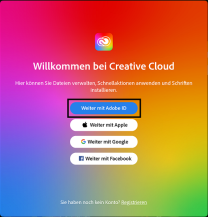
Simply enter uni-siegen.de to be redirected.
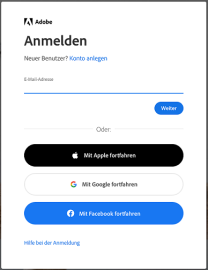
Then log in with your ZIMT user ID and password.

If you need to select a license, select the "LRZ University of Siegen" license.
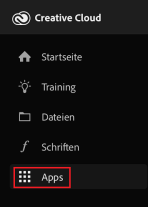
As soon as you have logged in, you will be redirected to the Creative Cloud app. To access your apps, select the "Apps" tab in the menu on the left-hand side.