Delegated accounts (Outlook) (MacOS)
On this page you will learn how to manually add delegated accounts in Outlook on MacOS devices.

Delegated accounts (Outlook) (MacOS)
Add as mailbox
As a rule, delegated accounts are also added when a primary account is added and displayed as separate folders under the mailboxes. However, if a delegation is not set up until later, it may sometimes be necessary to add the mailbox later.
To add the mailbox later, open Outlook and then your settings by clicking on "Microsoft Outlook" and "Settings" in the menu bar.

A new window will now open. Select "Accounts" there.

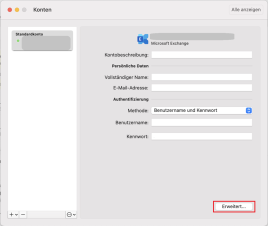
Select your standard account in the account overview and open the advanced settings by clicking on the "Advanced..." button.
In the next window, select the "Deputies" tab and click on the ± symbol under "Additionally open these mailboxes:".

Then enter the e-mail address of the delegated account and add it to your overview by clicking "Add".

It will then be displayed in the overview. Confirm your changes with "OK".

The account will be displayed under your other mailboxes after restarting Outlook.
