Description
Windows Server Update Services (WSUS) is a patch and update software by Microsoft, consisting of a server and a client component. WSUS offers you an effective and fast way of keeping systems up to date.
Operating system
Windows
Requirements
Administrator rights on the local system
Quick setup
A registry file with the settings can be downloaded here (right mouse button: Save target as...). This file only needs to be inserted into the local registry on the client by double-clicking.
The configuration steps are the same for all operating systems. You must have administrator rights on the local system for configuration.
1. Opening the group policy management console
To configure the policies, open the Group Policy Management Console (GPMC).
Under Windows 10 or 11, go to Windows key > Settings > Search settings > search for "Groups" > select "Edit group policy" in the results.
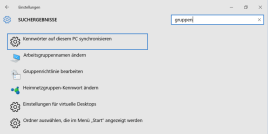
The GPMC opens (if not, you probably do not have administrative rights!).
The WSUS policies are located under Computer Configuration > Administrative Templates > Windows Components > Windows Update. Depending on which Windows you are using, you will find a different number of policies there. In our opinion, the settings presented here are the most sensible. Except for the setting of the path to the WSUS server, you do not have to adhere to the specifications. Each policy and its effects are explained in more detail under "Help".
2. Configurating the automatic updates
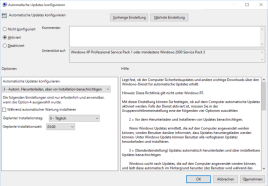
Double-click on the first policy "Configure automatic updates". This is one of the most important policies that must be set. Here you define how the update should be set up.
2 = Notify before downloading updates and notify again before installing them
3 = (default setting) Download updates automatically and notify about installable updates
4 = Download updates automatically and install them according to the specified schedule
Option 3 gives you control over when the updates are installed, but you no longer have to wait for them to be downloaded from the network.
3. Specifying the internal path for the Microsoft update service
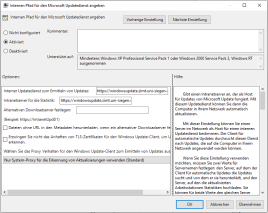
This is the second important setting. Here you specify which server the client should contact. The server address is
https://windowsupdate.zimt.uni-siegen.de.
4. Installing automatic update immediately
Determines whether updates that do not restart Windows services or Windows should be installed automatically. The less effort, the better.
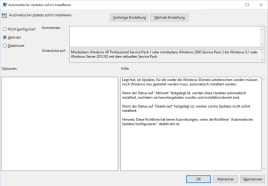
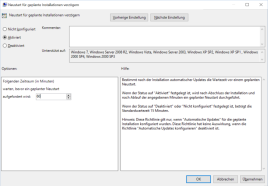
5. Prompting again for a restart for scheduled installations
Determines the time period before a restart is requested again. The default 15 minutes is too short and can disrupt the PC workflow.
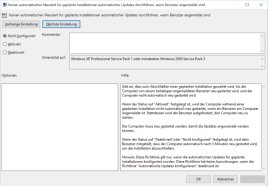
6. No automatic restarting for scheduled installation of automatic updates
Specifies that the computer must be restarted manually by the logged on user to complete the installation of automatic updates instead of restarting the computer automatically. The PC should not restart in the middle of work.
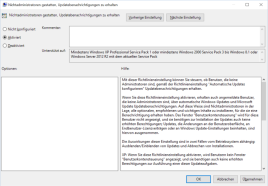
7. Allowing non-administrators to receive update notifications
Determines whether logged-in users who are not administrators receive update notifications according to their configuration settings for automatic updates. Since you do not always work with administrator rights, this policy is activated.
8. Finishing
After the GPMC has been closed and the computer restarted, the configuration of the Windows Server Update Service is complete.
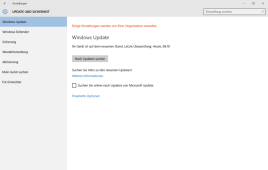
It can take up to 24 hours before you are informed about new updates, of course only if updates are available for the operating system. An initial check as to whether the guidelines have been accepted can be made by clicking on Windows Key > Settings > on the Update and Security page: The sentence "Some settings are managed by your organization" should now appear there.