
Cisco Secure Endpoint Protection
License |
Employees and students may install and use the software on work devices or for academic purposes |
Is an account required? |
Yes |
Languages |
German English |
Operating system |
Windows |
Requirements / Registration |
ActiveZIMT account The software can be requested through theuser account management system. |
Other |
|
Support |
If you need assistance, please contact the ZIMT Support Desk. If you have already installed Cisco Secure Endpoint, please send us your device’s GUID. To do this, open the Cisco Secure Client and click the gear icon to access the settings. There, click Secure Endpoint → Statistics → GUID and copy the entry using CTRL+C. Then paste the information into your email using CTRL+V. This GUID is necessary so that we can uniquely identify your device. |
If Sophos Home Premium is already installed on your device and you want to use Windows Defender, follow these steps to uninstall Sophos:
Uninstall Sophos using the “Uninstall” feature, which you’ll find in the Windows Control Panel under “Add or Remove Programs.”
Follow this order to uninstall (note that some components may not be listed):
- “Sophos Home”
- After uninstalling, it is recommended that you restart your computer.
Enable Windows Defender
Windows Defender is a built-in security program from Microsoft that protects your computer from viruses, malware, and other threats.
Step 1: Open Windows Security
- Click the Windows icon in the lower-left corner of the taskbar to open the Start menu.
- Type “Windows Security” into the search box and select the corresponding search result.
Step 2: Go to “Virus & Threat Protection”
- In Windows Security, click the “Virus & Threat Protection” tab. Here you’ll find an overview of your computer’s current protection status.
Step 3: Enable real-time protection
- Under “Virus & Threat Protection,” click the “Manage Virus & Threat Protection settings” link.
- Scroll down to “Real-time protection” and make sure the toggle is set to “On.” This enables Windows Defender real-time protection.
Step 4 (optional): Run a quick scan
- If you want to be extra sure that your system is free of malware, run a quick scan. Under “Current threat protection,” click “Quick scan.”
- Windows Defender will now scan your computer for potential threats.
Make sure that real-time protection and cloud-based protection remain enabled at all times to protect your PC from future threats.
FAQ
Windows
On your device, open Cisco Secure Client → Settings (click the gear icon) → Click “General” (on the left side of the window) → Click the “Settings” tab → Check the “Show Notifications” box
To view the complete history of Cisco Endpoint events:
1. Open Cisco Secure Client.
2. Click “Settings” (the gear icon) → Click “Secure Endpoint” (on the left side of the window) → Click the “Advanced” tab → Click “Event History.”
Open Cisco Secure Client -> select the scan type from the drop-down menu -> click “Start.”
Right-click the file → click “Cisco” → “Scan Now.”
Virus definition and Cisco Secure Client updates are performed automatically in the background.
macOS
In the macOS menu bar, click the Secure Endpoint Connector icon to access the connector’s user interface (UI).
In the ribbon there, click “Events” to view the events.
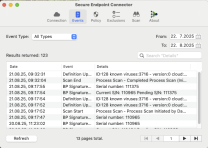
In the macOS menu bar, click the Secure Endpoint Connector icon to access the connector’s user interface (UI).
In the ribbon there, click “Scan” to access the connector’s scheduling options.
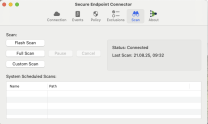
In the “Scan” window, you can initiate a “Flash Scan,” “Full Scan,” or “Custom Scan.”
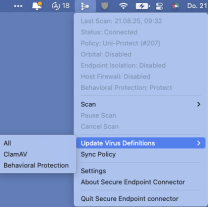
Updates to the virus definitions and the Cisco Secure Client are performed automatically in the background.
You can also initiate a manual update via the context menu.
Linux
The log files containing information about any threats that may have been detected
are located in the directory: /var/log/cisco
The path may vary depending on the distribution.
You can also use the command-line tool to immediately initiate a virus scan of the
system. To perform a quick scan, enter the following command
:/opt/cisco/amp/bin/ampcli scan flash
or for a full scan:/opt/cisco/amp/bin/ampcli scan full
Or, to scan a specific file or directory
/opt/cisco/amp/bin/ampcli scan custom
Help for the command-line tool can be accessed with the following command
:
/opt/cisco/amp/bin/ampcli help
Virus definition and Cisco Secure Client updates are performed automatically in the background.
