Request certificates
On this page you can find out how to apply for user and server certificates.

Instructions
Hints
You need a valid e-mail address at the University of Siegen.
Please note that the application for user certificates under the Academic Login is currently only available for e-mail addresses with the following domains:
- @uni-siegen.de
- @student.uni-siegen.de *
If you would like to apply for a certificate for an address under a different domain, you must first register directly with HARICA, stating the relevant address. You can find out more about this under "Registration for an alternative domain" in these instructions.
*Students must authenticate themselves in person at the Support Desk (room H-D 2203) with their ID card or passport before using the function. Without this, only an e-mail-only certificate can be issued.
Application
To apply for a user certificate, go to the following page: https://cm.harica.gr/Login
Select the option "Academic Login".
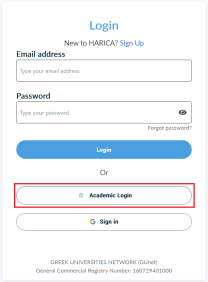
Now select the University of Siegen. You will then be redirected to a page of the University of Siegen.

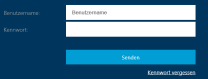
Log in there with your ZIMT account.
Under "Certificate Requests", select the "Email" tab.

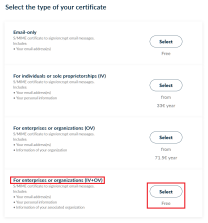
Now select "For enterprise or organizations (IV+OV)" and confirm with "Next". This option also integrates your personal information (first name, last name) into the certificate.
You will then receive an overview of the application. There you can check the e-mail address, contact details (first name, surname) and the organization and then confirm each with "Next". In the next step, confirm again with "Next".
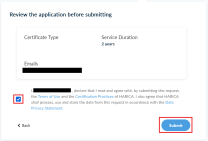
Accept the terms of use and privacy policy by ticking the box in the next step as shown in the image. You can ignore the information in the Support Documents (Identity Document). Then send the application by clicking on "Submit".
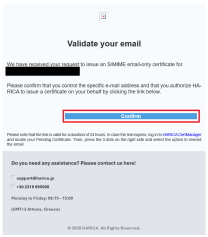
You will now be redirected to an overview of the outstanding certificates. To finally apply for your certificate, you must confirm your e-mail address. You will receive an e-mail from the HARICA Certificate Manager for this purpose. Click on the "Confirm" button there.

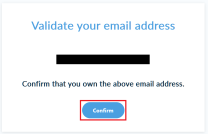
Now click on "Confirm" again in your browser.
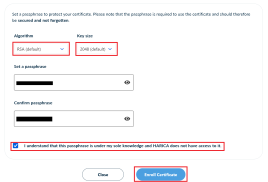
Your certificate is now ready. Click on the "Enroll your Certificate" button to configure and download your certificate.

The two options "Algorithm" and "Key Size" do not need to be changed. In this step, it is important that you assign a password for your certificate.
Important: Keep the password. You will need your password every time you want to import your certificate!
Then confirm that the password is only known to you and that you are aware that HARICA does not have access to your password by checking the box accordingly. Now end the process with "Enroll Certificate".
You will now be prompted to download your certificate. Do this by clicking on "Download".
Please note that you will not be able to download the certificate at a later date. This step is the only way to download your certificate. For this reason, you should also save the file afterwards.
Your certificate should now be in your download folder. You can now start the import.
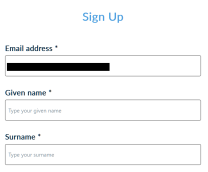
If you would like to apply for a certificate for an address under a different domain, you must first register directly with HARICA, stating the relevant address. To do this, click on "Sign up".
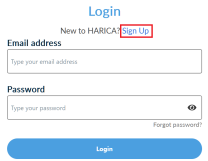
Then enter the corresponding e-mail address and fill in the fields marked with an asterisk (*). You can leave the remaining fields blank. Then confirm with "Submit".
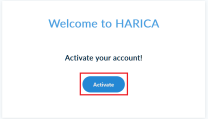
You will then receive an e-mail from the HARICA Certificate Manager. Click on "Confirm" to confirm your address. After forwarding, click on "Activate" to activate your account.
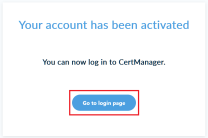
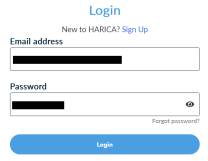
After activation, click on "Go to login page". You can now log in with the e-mail address and password you have previously assigned to apply for a certificate.
Prerequisites
A personal e-mail address must be used for the application. Functional addresses are not suitable for the application!
You should create and upload the Certificate Signing Request (CSR) yourself, as the private key should remain on your system in order to sign the CSR.
Application
To apply for a server certificate, open the HARICA CertManager website. Select the Academic Login option and search for the University of Siegen.
You will then be redirected to the university's Shibboleth identity provider. Log in here with your ZIMT account.
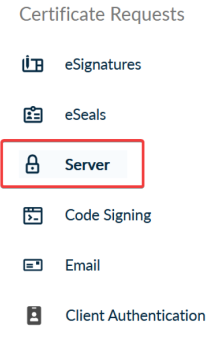
As soon as you are logged into the portal, you can now submit the application. To do this, select the Server option from the menu on the left-hand side.
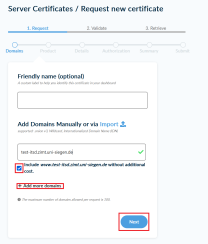
The certificate can now be requested here. You can assign a label for your certificate under Friendly name (optional) to make it easier to identify it later.
Under Add Domains Manually or via Import, enter the server name and check the Include www.[server name] without additional cost box. Additional server names can be added using the +Add more domains option.
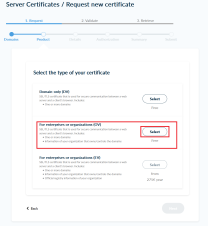
In the next step, select the option For enterprises or organizations (OV) using the Select button. In the next step, confirm with Next.
Also confirm theorganization information with Next.
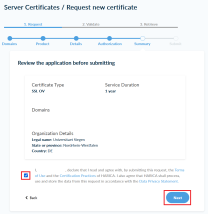
Now agree to the terms of use by checking the box under "Review the Application before submitting" and confirming again with Next.
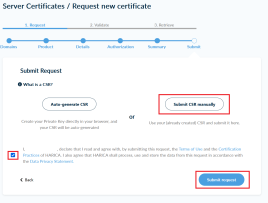
In the next step, the CSR must be generated. Manual generation is recommended here, as the private key should remain on your system in order to sign the CSR. To do this, select the option Submit CSR manually.
Paste the content of the CSR into the field provided and check the box to agree to the terms of use. Now send your request via the Submit request button.
Download
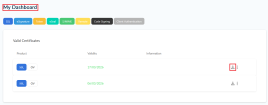
As soon as the certificate has been approved, you will receive an e-mail from Harica. Click on the link in the email and log in to the website again to access your dashboard.
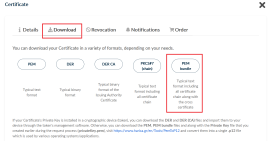
You can now download the certificate from your dashboard using the download button. It is available in various formats. The PEM bundle variant is recommended. This contains the actual certificate and the certificate chain.
The certificate can now be imported.
