Set up eduVPN
On this page you will learn how to set up and use eduVPN.

Instructions
Download
To use eduVPN, you must first download the client or the app. You can find these on the eduVPN website. For MacOS and mobile devices (iOS, Android), you can find the app in your device's App Store.
Setup
Then open the application to start the setup.
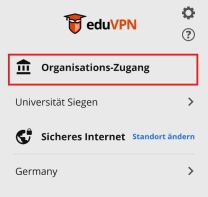
Now select the "Organization access" option to access the organization search.
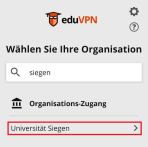
You can now use the search function to find and select the University of Siegen.
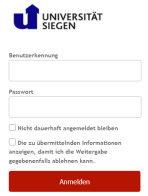
You will now be redirected to the university's login page. Log in here with your ZIMT account.
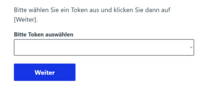
Next, you need to confirm your login using your second factor (MFA).
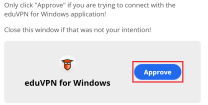
Now approve the connection by clicking on "Approve".
You should then see the following screen:
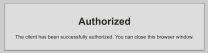
In the current configuration, access is legitimized for a period of just over a week. Only then is a new login required (per app or device).
Note: During the transition phase, the admin profiles of eduVPN and OpenVPN cannot be used simultaneously.
How to use
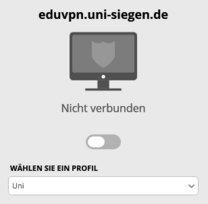
To establish a connection via VPN, you can select the desired profile at the bottom of the application and activate it by pressing the slider. If the slider lights up green, the connection is successful.
Testing the connection
The following links can be used to check whether the VPN tunnel is being used successfully for connections:
When using the Uni-VPN profile:
- https://ip4.zimt.uni-siegen.de (explicitly IPv4, address should start with 10.2.224-239)
- https://ip6.zimt.uni-siegen.de (explicitly IPv6, address should start with 2a04:dfc0:dc:225:)
- https://ip.zimt.uni-siegen.de (automatic protocol selection, IPv6 is usually preferred
When using the Admin VPN profile:
- https://ip4.zimt.uni-siegen.de (explicit IPv4, address should start with 141.99.224-231)
- https://ip6.zimt.uni-siegen.de (explicitly IPv6, address should start with 2a04:dfc0:dc:224:)
- https://ip.zimt.uni-siegen.de (automatic protocol selection, IPv6 is generally preferred)
