Integrate NAS drive
On this page you will learn how to integrate a NAS drive (Network Attached Storage).

Instructions
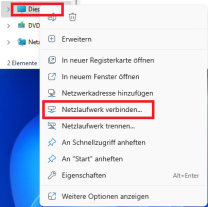
For Windows 11 devices, open your File Explorer and select "This PC" from the menu on the left-hand side by right-clicking. Then select the "Connect network drive" option from the drop-down menu.
You can now add the drive in the next window. Check the box next to "Connect with other credentials". Then enter the corresponding path that you were told in the field next to "Folder" and click on "Finish".
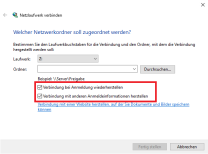
If you are connecting multiple NAS drives under the same user ID, leave the box next to "Connect with other credentials..." unchecked.
In the next step, you must enter your user name + @uni-siegen.de (e.g. g123456@uni-siegen.de) and your password. Confirm with "OK".
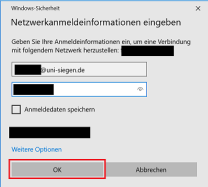
Your NAS drive is now connected.
You can also use this method to connect a specific subfolder directly.
The maximum path depth (\folder\subfolder\filename.extension) should not exceed 220 characters.
First open the Finder. Now click on "Go to". A drop-down menu opens. Select the option "Connect to server...".
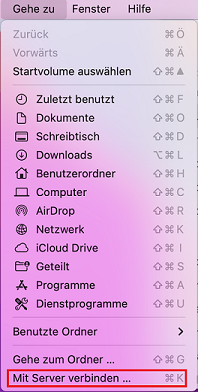
In the next window, enter the corresponding path that you were told in the field and confirm with"Connect".
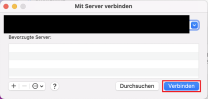
Please note that the format must be changed for MacOS devices. Instead of backslash ("\"), slash ("/") is used here (e.g. smb://filer.uni-siegen...). Furthermore, the protocol "smb:" must be selected for MacOs
In the next step you will be asked to enter your user name +@uni-siegen.de
(z.B.g123456@uni-siegen.de) and your password. Then confirm with "Connect".
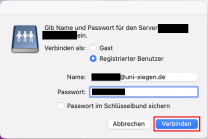
Your NAS drive is now connected.
You can also use this method to connect a specific subfolder directly.
The maximum path depth (\folder\subfolder\filename.extension) should not exceed 220 characters.
To connect your Linux device to a NAS drive, open your file explorer and select the "Other locations" option in the menu on the left-hand side.
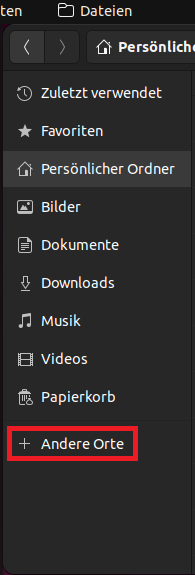
Then enter the corresponding path you were told in the field next to "Connect to server".

Confirm with "Connect" to continue.
A login window will now open. Enter your ZIMT user ID and password here. Under Domain, enter the following:
uni-siegen.de
Then confirm with "Connect.
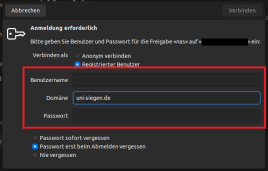
Your NAS drive is now connected.
You can also use this method to connect a specific subfolder directly.
The maximum path depth (\folder\subfolder\filename.extension) should not exceed 220 characters.
