Outlook - Export mails
On this page you will learn how to export emails in Outlook.

Instructions
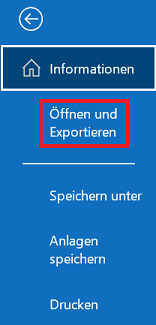
To export emails from your mailbox, open Outlook and select the "File" tab and then the "Open and export" option.
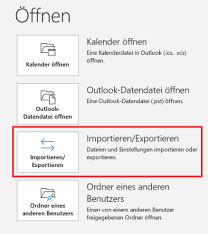
On the next page, select the "Import/Export" option.
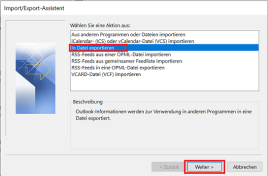
The import/export wizard will now open. Select the option "Export to file" and confirm with "Next".
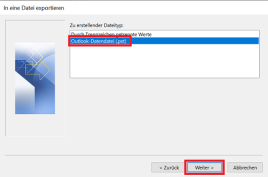
You can select the file in the next window. Select the option "Outlook data file (.pst)" and click on "Next".
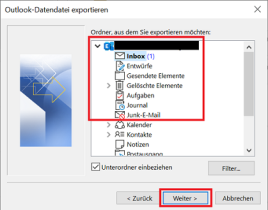
You must then select the folder to be exported.
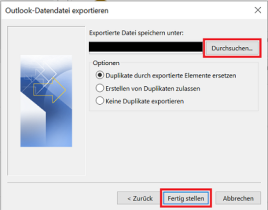
Finally, select a folder in which the file should be saved and confirm with "Finish".
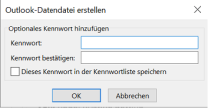
If you want to prevent others from accessing the data file, you can optionally set a password.
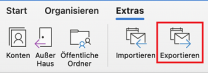
To export emails from your mailbox, open the Outlook app and then the "Extras" tab. Now select the "Export" option.
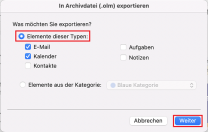
In the next window, you can select which items you would like to export.
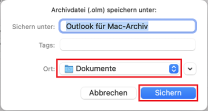
Then select the folder in which the file is to be saved and confirm with "Save".
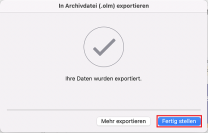
Once the file has been successfully exported, the following window appears. Now confirm with "Finish" to end the process.