
Instructions
Download and installation
You can download the OpenVPN Connect app from the Apple App Store .

When installing for the first time, you may need to allow the download before you can continue.
The app opens after the download. Agree to the license terms by confirming with "Agree" in order to continue.
Then close the OpenVPN Connect app and continue with the download and import of the profile.
Profiles
Additionally download the uni or the admin (optional, only if you have admin VPN access).
Confirm the download with "Download".
Now open your download folder.
Import
In the next step, you can now import the previously downloaded profile (see Profiles). To do this, proceed as follows:
Open your download folder and then the profile file.
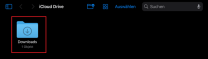
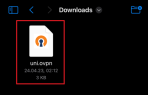
The following screen will now open. Select the upload symbol at the top right.

Another menu will now open. Select the "OpenVPN Connect" app here.
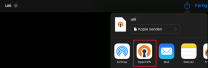
Click on "ADD" in the next window.
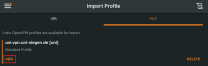
The profile is now imported and can be set up in the next step.
Setup
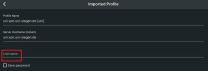
In the next step, you must now enter your ZIMT user name.
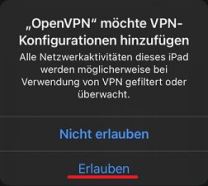
Your device will now open a pop-up. Confirm the configuration with "Allow" and enter your device password (the password you use to unlock your device ) in the next step.
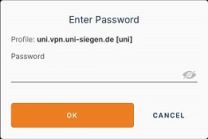
Now enter your ZIMT password and confirm with "OK".
After entering the correct information, the app can establish a connection.
