


The Katalog plus of Siegen University Library

Here you will find all media purchased by the library as well as numerous licensed and free e-resources such as journal articles, e-books and database content.
Please log in via "Account" with your library card number to be able to use all the functions of Katalog plus (place reservations and magazine orders, use licensed content, manage your account, create favourites lists and save search queries).
Content
You can find books (printed or electronic), audiovisual media and journal titles from our collection with a shelfmark via the "Catalogue" tab.
Articles or other book or journal content are not included here.

You will receive hits from the holdings of the University Library for the search terms you enter. These are books and journal titles (not articles!) as well as eBooks and licensed eJournals acquired by the library. Other audiovisual media such as CDs or DVDs from the library's holdings are also listed.
If a hit is an eBook or an electronic journal licensed by us, you can access it campus-wide or via VPN using the link provided.
Sorting
By default, the list is sorted chronologically by year of publication: the most recent content is displayed first. If required, a different sorting, e.g. by relevance, can be specified.
Filtering the results
The hit list can be filtered to a specific publication period by entering the year or using the slider.

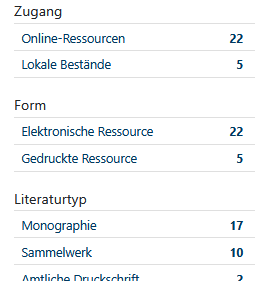
Various filter options are available for further content and formal restrictions, such as literature type, (publication) form, keyword or language. Click on the "Show filters" button if they are not visible on the right-hand side
You can find books (printed or electronic), audiovisual media and articles/content from journals and books via the "Articles and more" tab.
The results are initially independent of our holdings, as searches are carried out in databases that are either freely available online or have been licensed by Siegen University Library.
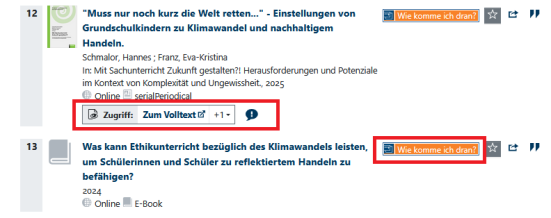
To find out how you can obtain the literature sources found, click on the button "How do I get to it" for the desired hit, unless a direct access link to the full text is offered.

Hit list:
Contents
The "Articles and more" tab provides hits from selected specialist databases, catalogs and full-text archives and thus in particular so-called secondary literature such as articles from journals, individual chapters from books or articles from collective works.
Sorting
The list is sorted by relevance by default. Sorting can be done chronologically using the corresponding slider.
Filtering the results
- The hit list can be narrowed down to a specific publication period using the slider or by entering the year.
- Various filter options are available for further restrictions in terms of content and form, such as type of source, subject or language. Click on the "Show filters" button if they are not visible on the right-hand side.
Access to full texts
- Available electronic full texts of the hit are linked directly, so that direct access to the content itself is possible from the search.
- In the case of purely bibliographical references, i.e. hits for which no link to full texts is possible, you will receive information on how to access or obtain the document found via the "How do I get to it" link.
Please note:
Access to electronic content that the University Library has purchased or for which it has concluded licenses is generally only possible if you are working within the university network or are connected to it via VPN.
Contents:
The results list under the "Electronic journals" tab provides hits from the database of the EZB electronic journals library. Listed are
- electronically published scientific journals for which the Siegen University Library has licensed individual or all volumes,
- Journals that are freely accessible
- but also journals for which there is no access to the full texts at the University of Siegen. However, tables of contents or abstracts are often available here.
Sorting
The list is sorted alphabetically and cannot be changed.
Access to full texts
The link "How do I get it" will give you information on how to access the journal you have found or how to obtain articles from it.
Please note:
Access to electronic content that the University Library has purchased or for which it has concluded licenses is generally only possible if you are working within the university network or are connected to it via VPN.
At the top of the screen you will find the "Login" button, which you can use to log in to the Katalog plus. You will be redirected to the university's Shibboleth login screen, where you can log in with your ZIMT ID and password.
As an authenticated user, you can use the following additional functions in the catalog plus:
- Access to the personal library account
- renewal or reserving of borrowed media
- Order media from the closed stacks or via interlibrary loan
- Create and keep favourites lists with your hits
- Retrieve bibliographic data from licensed databases if you are not in the University of Siegen network.
Please remember to log out again after completing your search in Katalog plus so that your account cannot be viewed by unauthorized persons or reservations or orders placed in your name.
Simple search field
To make searching as easy as possible, only a single search field is preset when opening the catalog plus. Search terms from different categories (titles, persons, keywords etc.) can be entered here. However, signatures cannot be searched for here.
Stemming is active for this search. This means that the search terms entered are automatically extended or shortened by certain word endings so that you receive a larger total number of hits.
More search fields
You can use the "More search fields" link to expand the search mask and search in specific fields:
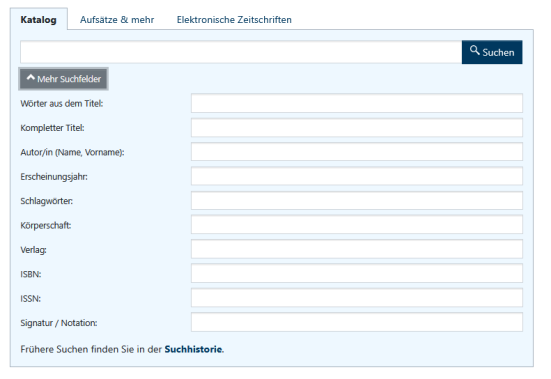
- Title keyords: The search terms entered are contained in the title of the media searched for
- Full title: The search terms entered are contained word for word in the title of the media being searched for. This is useful, for example, when searching for specific magazine titles.
- Author (surname, first name): The names of authors can be entered in this field in the form "last name, first name", "first name last name" or just "last name"
- Year of publication: The "Year of publication" category can be used to search for titles published in a specific year or within a specific period (2019-2021). It is also possible to search from a specific year of publication (2019-) or up to a specific year of publication (-2019).
- Subject headings: Subject headings describe publications thematically and are therefore suitable for thematic literature and information searches.
- Corporate name: Corporate names include for example institutions or conferences and congresses
- Publisher: Entry of words from the name of a publisher
- ISBN / ISSN: The ISBN (International Standard Book Number) and the ISSN (International Standard Serial Number) are used to uniquely identify publications. They consist of 8, 9 or 13 digits, which are divided into individual groups by a hyphen. The numbers can be entered with or without a hyphen.
- Shelfmark / Classmark: here you can search for media from the holdings of Siegen University Library using the shelfmark.
The classmark (the sequence of letters within the shelfmark) is used to find media with related content. This can be entered in upper or lower case.
Example:
Entering the notation KLEX will find all media that are thematically assigned to the KLEX section on the shelf and are located there; in addition, media that are under a different notation on the shelf but have a reference to KLEX.
This could be books that cover several topics.
- When entering umlauts (ä, ö, ü), both the umlauts themselves, their resolution (ae, oe, ue) and the basic form (a, o, u) are searched for.
- When entering "ß", hits with both "ß" and "ss" are found, but not with a simple "s".
- Certain search terms are treated as stop words in the catalog plus and are therefore not included in the search. These include definite and indefinite articles, prepositions or pronouns.
Example:
The stop word "der" is ignored when searching for "Lexikon der Schifffahrt", so that hits with the title "Lexikon Schifffahrt" or "Lexikon über die Schifffahrt" are also displayed.
AND link
If several search terms are entered in one field, an AND operation is automatically performed
Example: Entering medienerziehung medienpädagogik will return hits containing both search terms. These do not both have to appear in the title or subtitle, but they must appear in the title entry.
OR link
Link the search terms with OR if you want to extend the search to increase the number of hits.
The character for linking with OR in the catalog plus is | (the character is located on the keyboard on the >< key).
Example: Entering medienerziehung | medienpädagogik will return hits containing either medienerziehung or medienpädagogik or both words.
NOT link
Link the search terms with NOT if you want to restrict the search, e.g. to exclude a very specific search term from the search.
The character for linking with NOT in the catalog plus is - (whereby this is placed before the second search term without a space).
Example: Entering medienerziehung -medienpädagogik will return hits whose titles contain the term medienerziehung but not the term medienpädagogik.
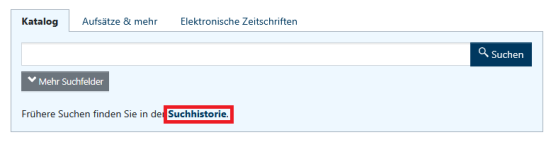
The portal automatically remembers the last searches you made. Here you can view the list and re-execute or modify the individual queries. The entire list can also be deleted.
New entries replace older ones.
If you are not logged in to the Katalog plus, the list expires at the end of the session.
The title can be saved in the favourites list using the star to the right of a hit, e.g. to export it later.

The favourites list created in this way can be accessed either via the "Account" menu item or via the star symbol in the main menu.
Up to 25 personal favourites lists can be created in the favourites list overview to sort tracks.
To do this, click on the blue plus sign below a hit in the favourites list and enter a name for the personal list.

As soon as at least one personal list has been defined, hits can also be assigned to the defined lists from the hit list. The personal favourites lists for the assignment can be selected or deselected via the drop-down menu next to the watch button of a hit:

In the favourites list, the display can be filtered according to specific lists.
The favourites list functions, such as export, also only work with the entries in the current selection when filtering. The favourites list function "Clear list", which appears when only one list is selected for display, removes all assignments to the selected list, thereby deleting it. However, the entries that were assigned to the list are not deleted from the entire watch list. To achieve this, the "Forget entries" function can be selected.

You can use the "Export list" function to send a list by email or save it in various formats, e.g. select the "BibTeX format" for export to Citavi or Zotero.


